Blazor Tips-n-Tricks! How to Remove Visual Studio @Code Grey Background
Have heard it from others – and I agree – it’s harder to read your code with the default “grey background” when writing Blazor with the @code formatting. So — what to do? Simple solution is to change the way…
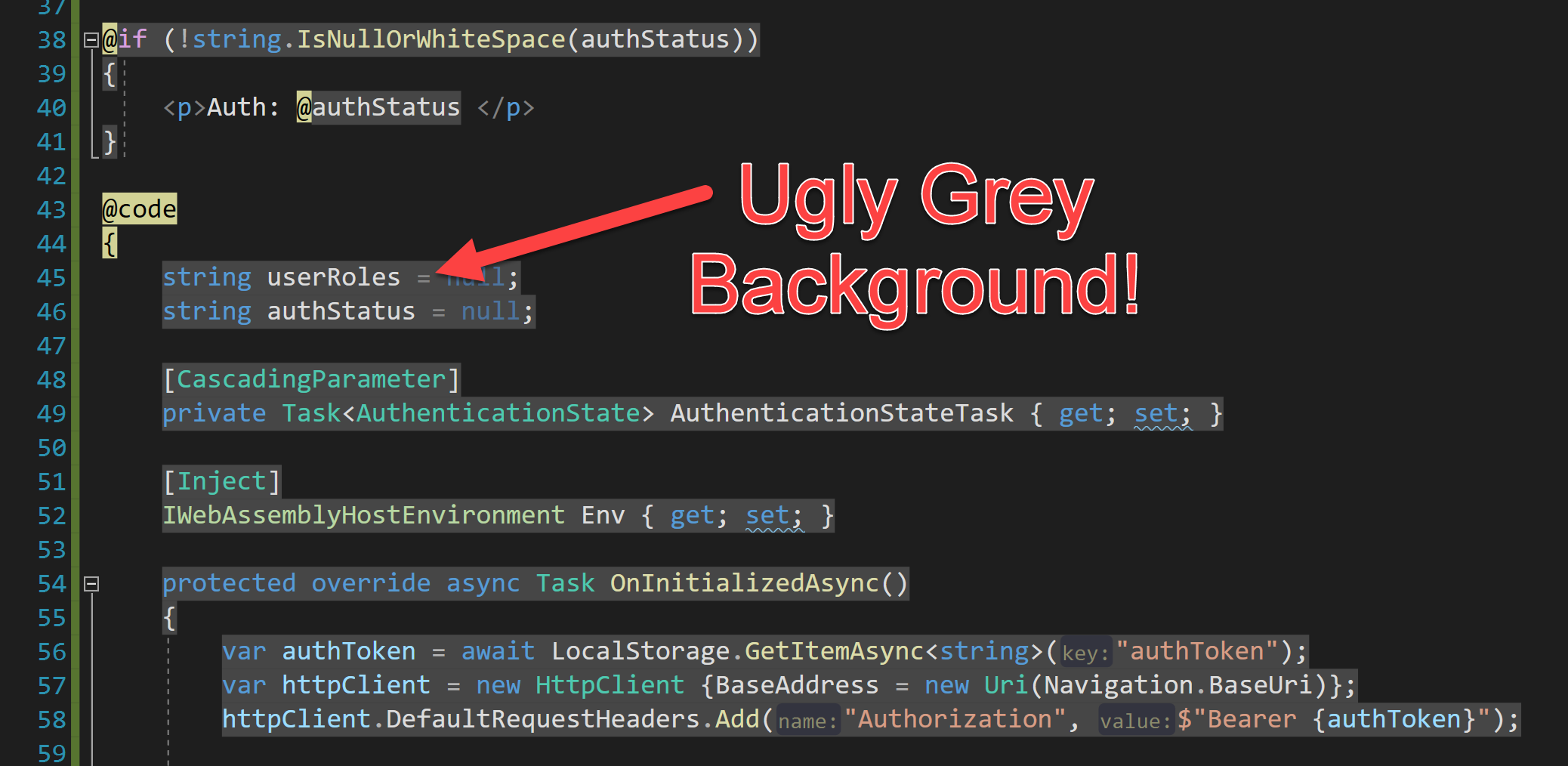
Have heard it from others – and I agree – it’s harder to read your code with the default “grey background” when writing Blazor with the @code formatting. So — what to do?
Simple solution is to change the way this is displayed in Visual Studio – but where the heck is this setting? Non-trivial to find — so here is the solution!
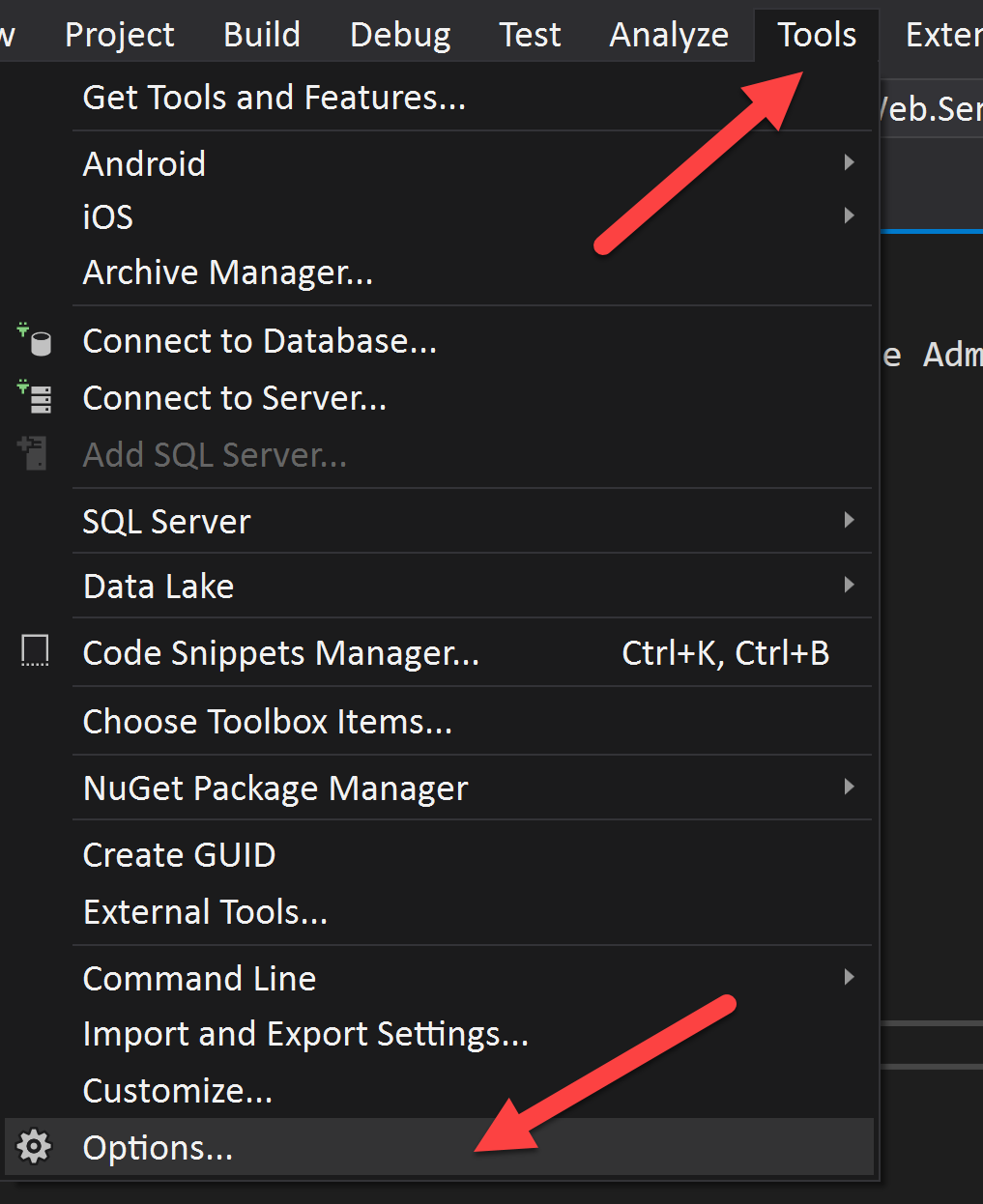
In Visual Studio, click on the Tools menu -> then on Options
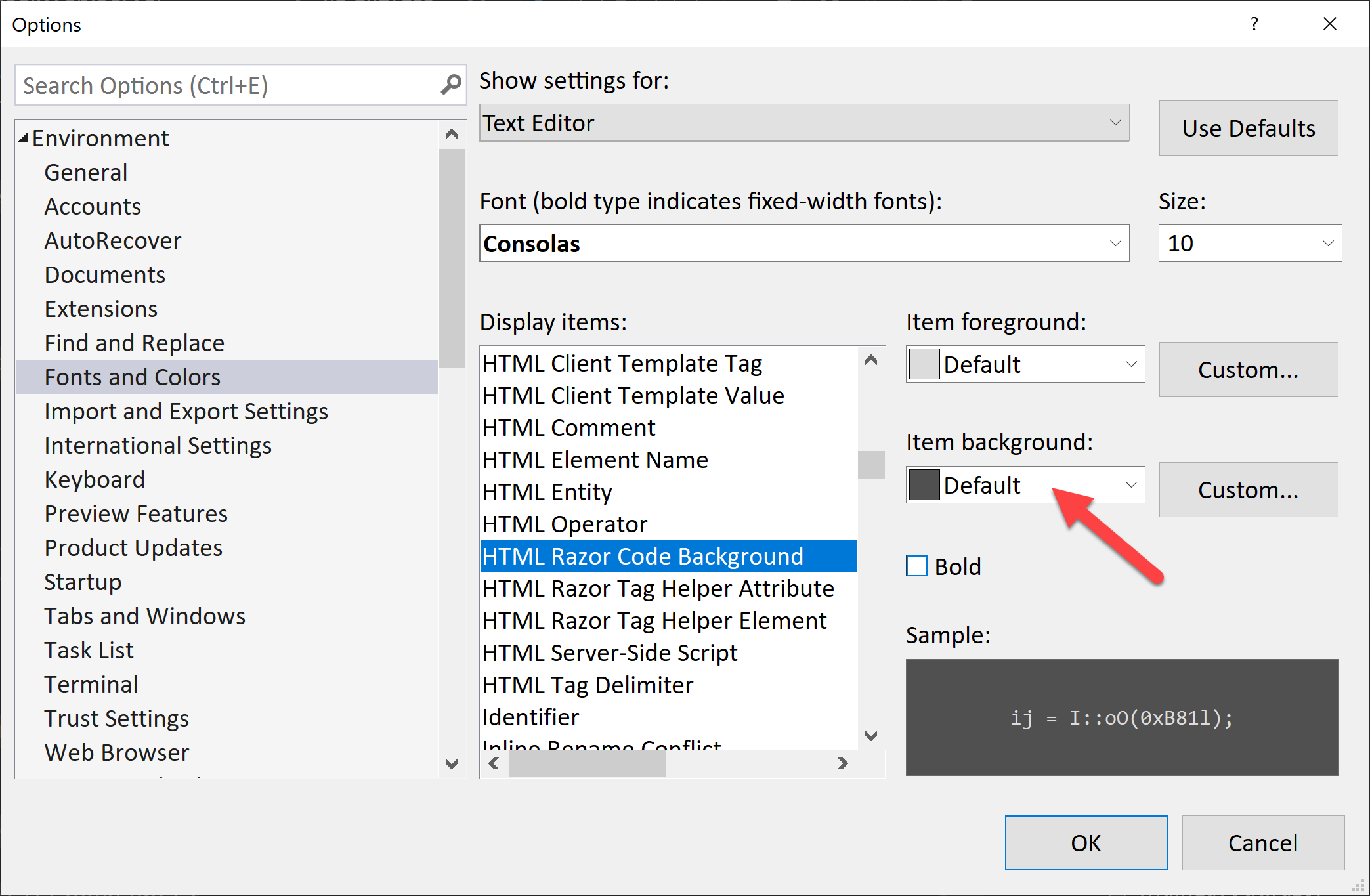
Which brings up the Options dialog box.
Click on Environment -> Fonts and Colors -> in the Display Items scroll down to HTML Razor Code Background This is the non-obvious part as there are hundreds of choices in that box! Really needs a better way to search it @Microsoft 🙂
Change Item Background from Default to Automatic.
And Woot! Bob’s your Uncle. 🙂
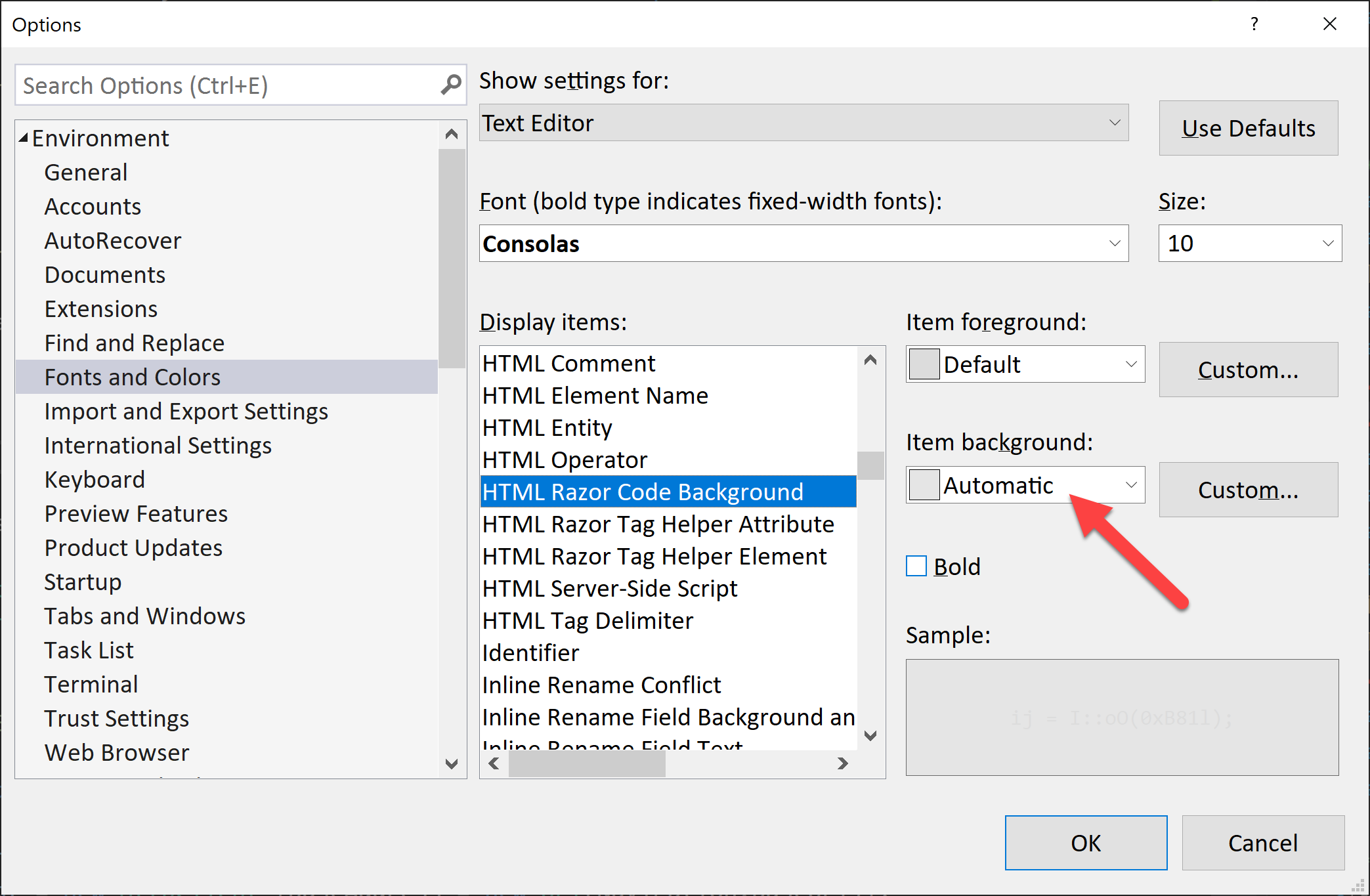
Now it should look like your normal beautiful code!
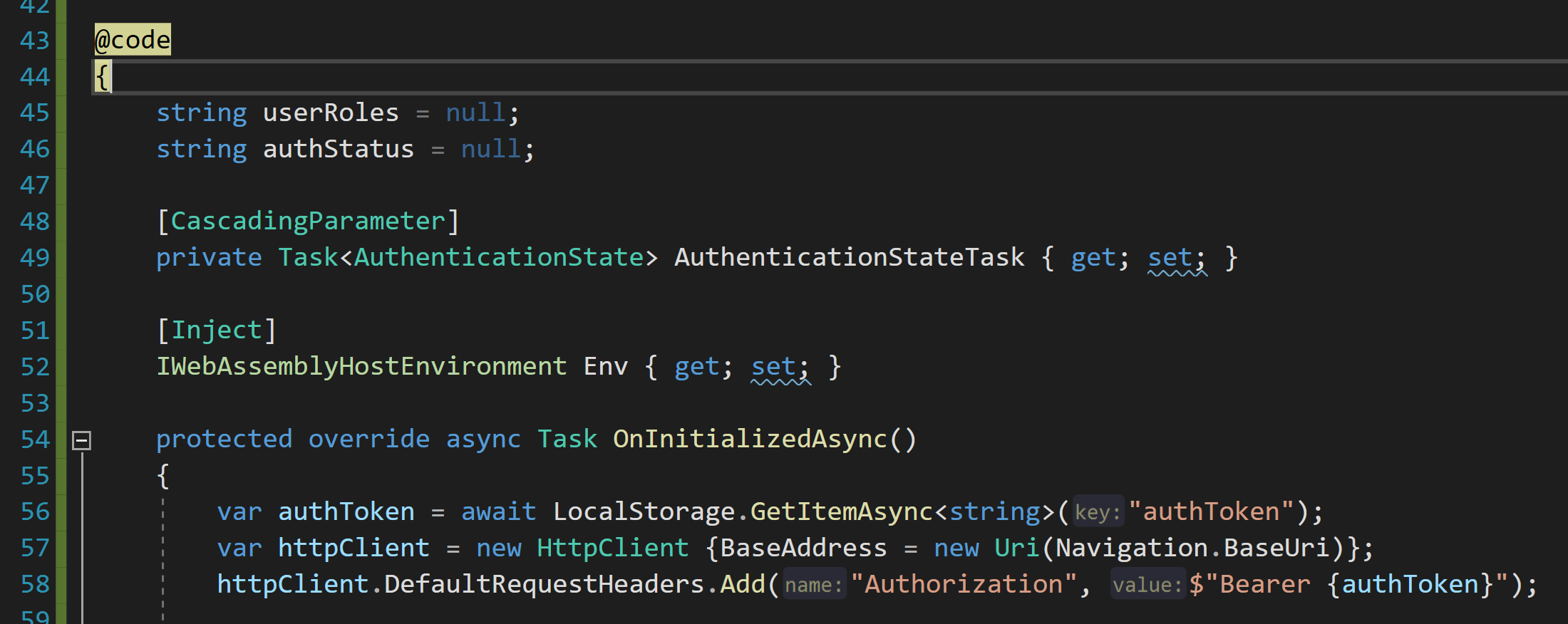
Enjoy, that’s it!
Good coding!! //L2 🙂