XR Step-by-Step 2023! Hololens 2: Installing the Tools you need! Unity 2022 + MRTK 2.8.3 + Visual Studio 2022
Virtual and Augmented Reality together are now referred to as XR or “Extended-Reality”. You’re in the right place at the right time to build something amazing in XR! XR applications can be created in Unity for many devices, our focus…
Virtual and Augmented Reality together are now referred to as XR or “Extended-Reality”.
You’re in the right place at the right time to build something amazing in XR!
XR applications can be created in Unity for many devices, our focus will be on Microsoft Hololens 2 and the Meta Quest 2 / Pro.
In this specific blog post series we will focus on Hololens 2 in the latest Unity and Visual Studio!
Want to see the other blog articles in this (and other) series?
Click here to see all of my XR Step-by-Step blogs separated by device and version!
Welcome! I love the Hololens!! It can solve real-world problems by bringing computational vision to industries that have never had anything as immersive as this before…
We need to get more developers working and comfortable with the tools — so together we’ll be doing just that. Buckle up, and welcome to the future of XR!
We’ll start by getting all the tools setup and configured.
TL;DR -> Quick Reference summary FOLLOWED BY the detailed Step-by-Step with images!
- !!! NOTE: Below this Quick Reference is the fully detailed Step-by-Step version with images! !!!
- Install Unity Hub (https://unity3d.com/get-unity/download)
- Click Installs -> Install Editor -> then click Install next to the latest version of 2022
- Update! Recommending 2022.3.4f1 – this is the LTS (Long Term Support) Version 🙂
- Check Microsoft Visual Studio Community 2022 (if you don’t have it installed already)
- Check Android Build Support (required for Meta Quest)
- Check OpenJDK (required for Meta Quest)
- Check Android SDK & NDK Tools (required for Meta Quest)
- Check Universal Windows Platform Build Support (required for Hololens)
- Check Windows Build Support (IL2CPP) (required for Hololens)
- Click Installs -> Install Editor -> then click Install next to the latest version of 2022
- Run Visual Studio Installer -> click Modify
- Check Desktop development with C++
- Check Universal Windows Platform development
- Check Game development with Unity
- On the right hand side, check USB Device Connectivity
- Install latest Windows SDK
- Download Microsoft Mixed Reality Feature Tool
- Download the 5 MRTK (Mixed Reality Toolkit) Unity packages
Full Step-by-Step Instructions!
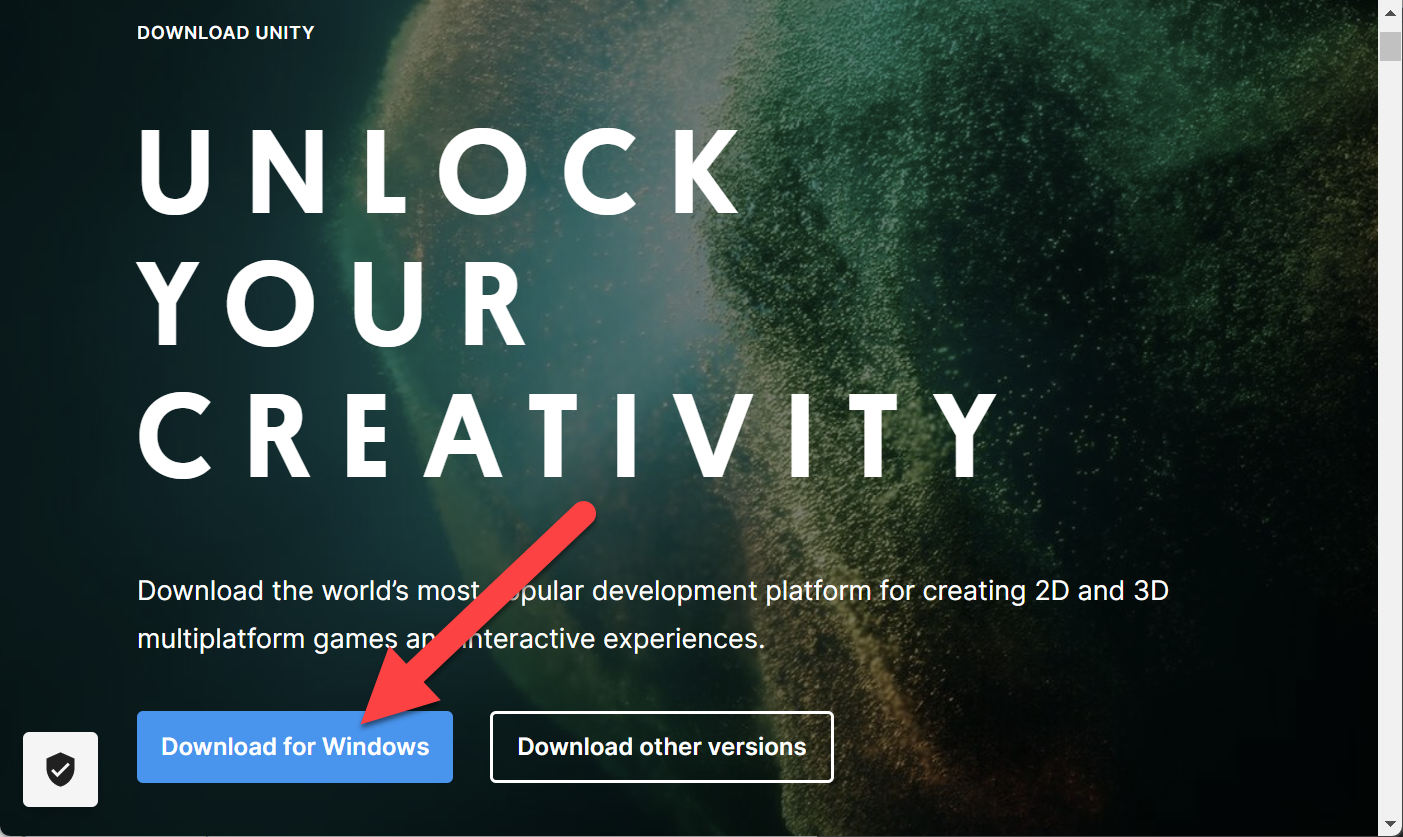
- Download Unity Hub
- Unity is constantly releasing new versions of their tools (very exciting to see the investments they’re making in our favorite XR tools) – so Unity Hub is the best way to keep up to date with the newest versions and manage your projects!
- https://unity3d.com/get-unity/download
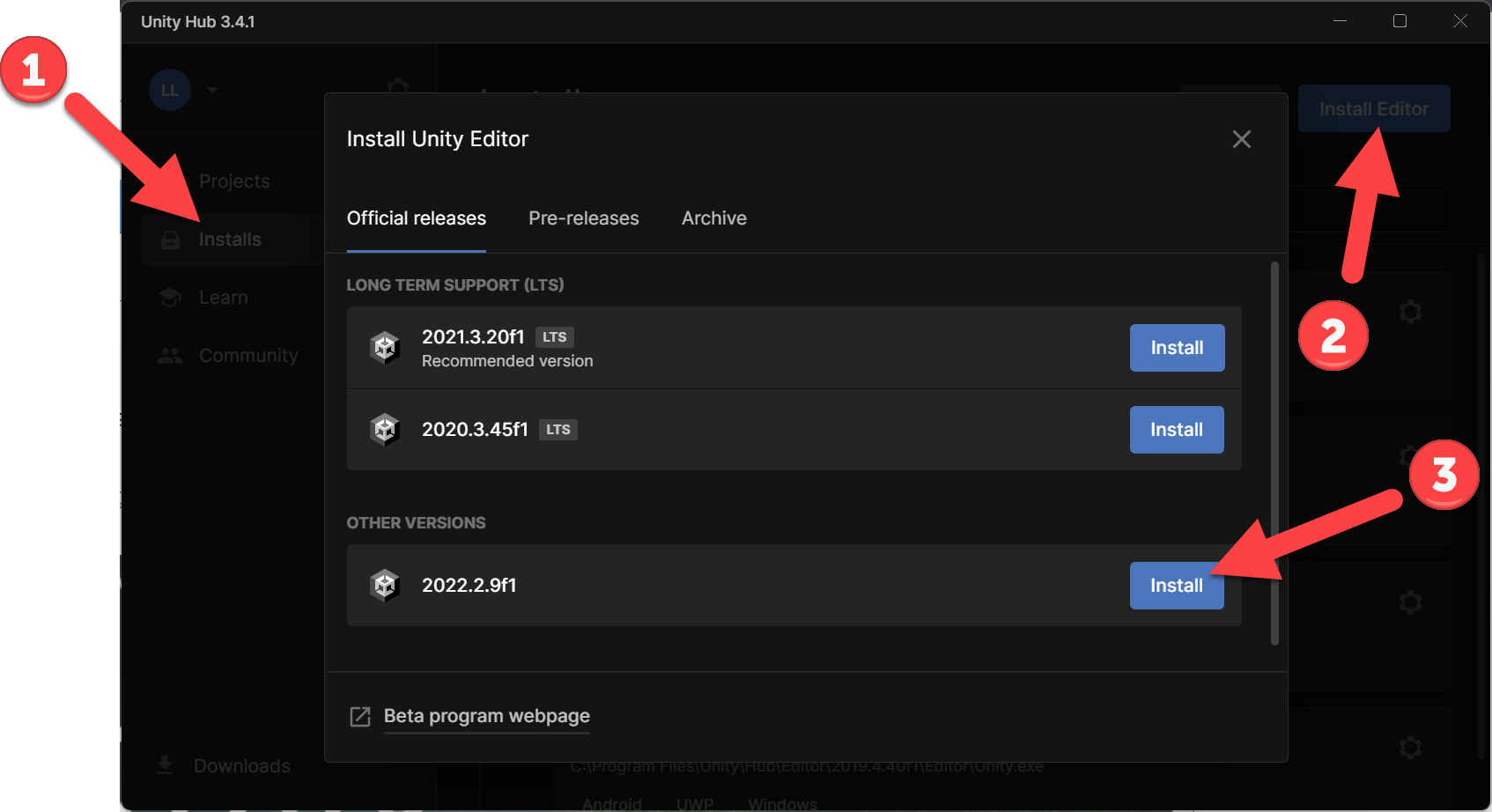
- Click Installs
- Click Install Editor
- Click Install next to the latest version of 2022
- IMPORTANT As of the writing of this blog, Unity 2022.2.9f1 is available BUT it has a known issue with OpenXR, so install 2022.2.5f1 for now! The joys and pains of living on the edge 🙂
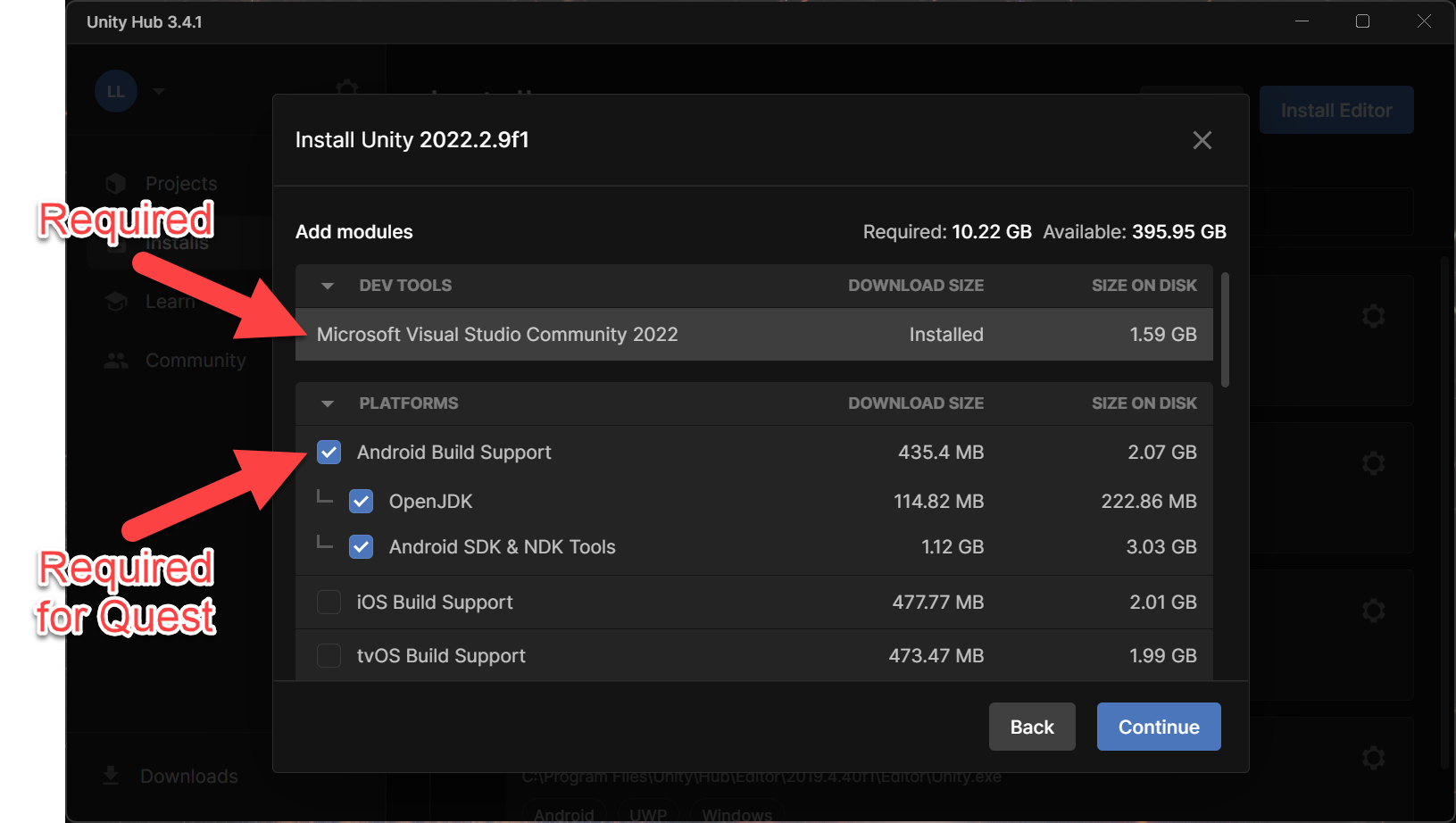
- Check Microsoft Visual Studio Community 2022 (if you don’t have it installed already)
- Check Android Build Support
- Check OpenJDK
- Check Android SDK & NDK Tools
- Note, for Meta Quest development the above are required, for Hololens development these are optional but as I do both (and hopefully you will as well) I always check all of these
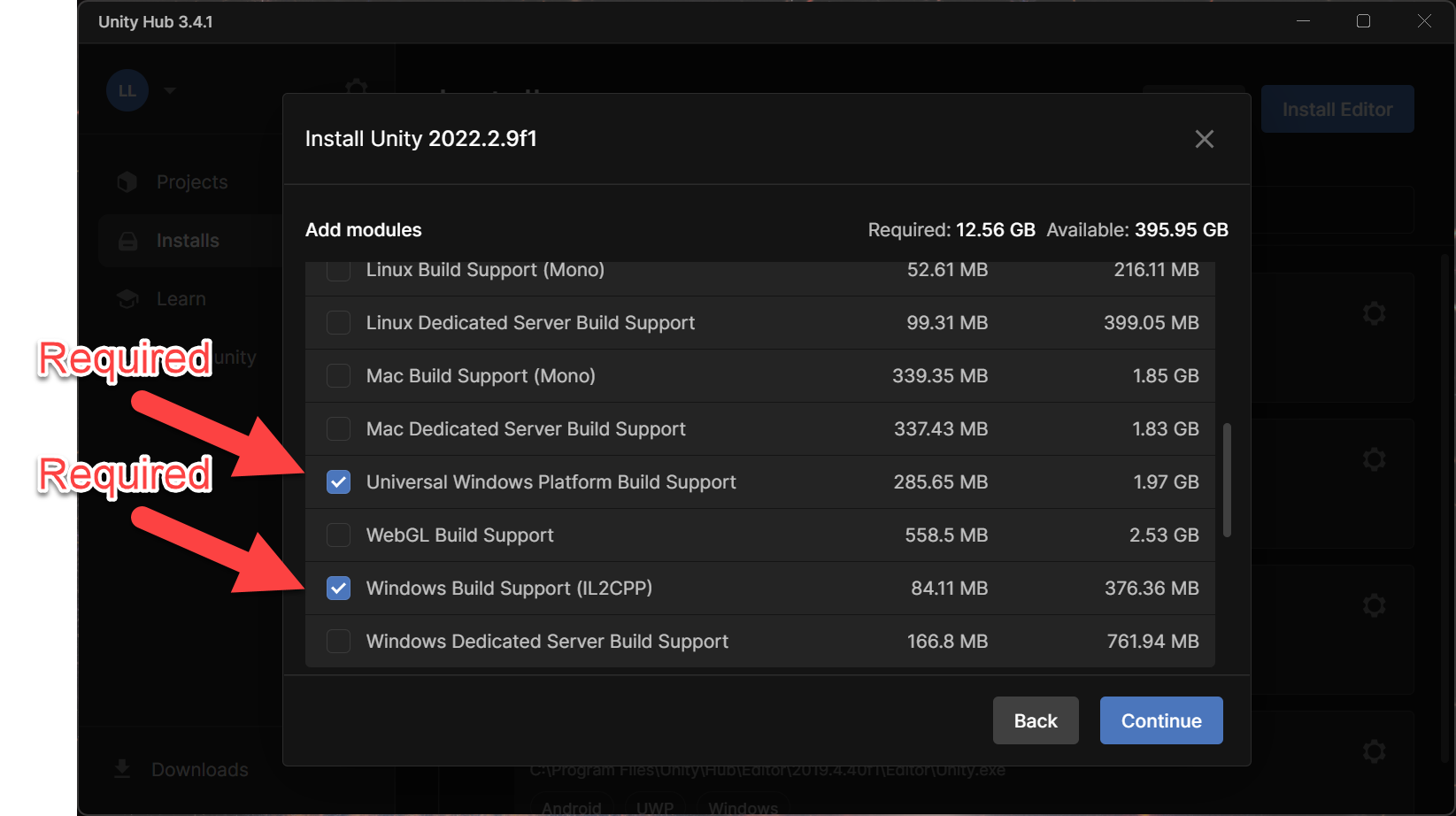
- Check Universal Windows Platform Build Support
- Check Windows Build Support (IL2CPP)
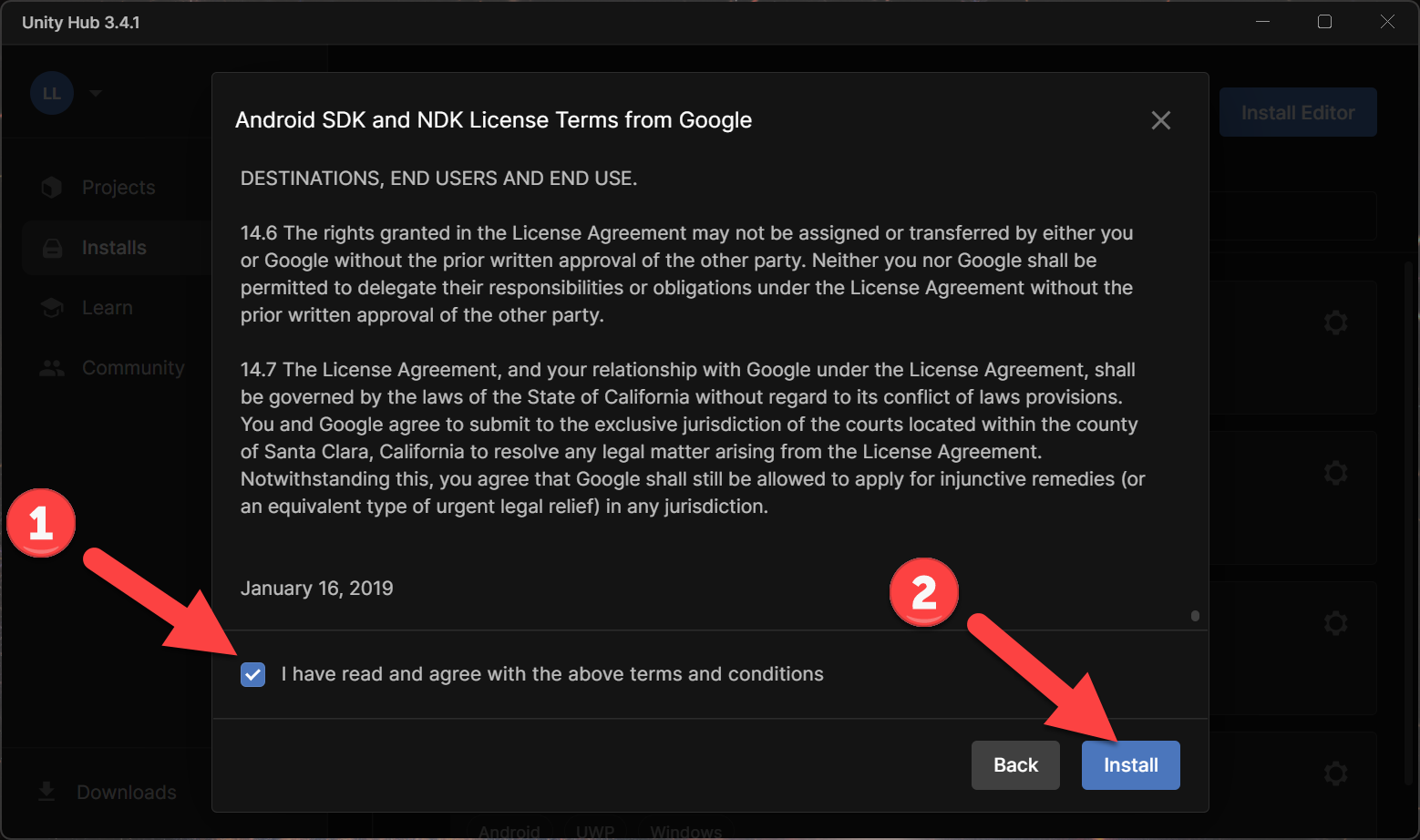
- Check “I have read and agree…” and click Install
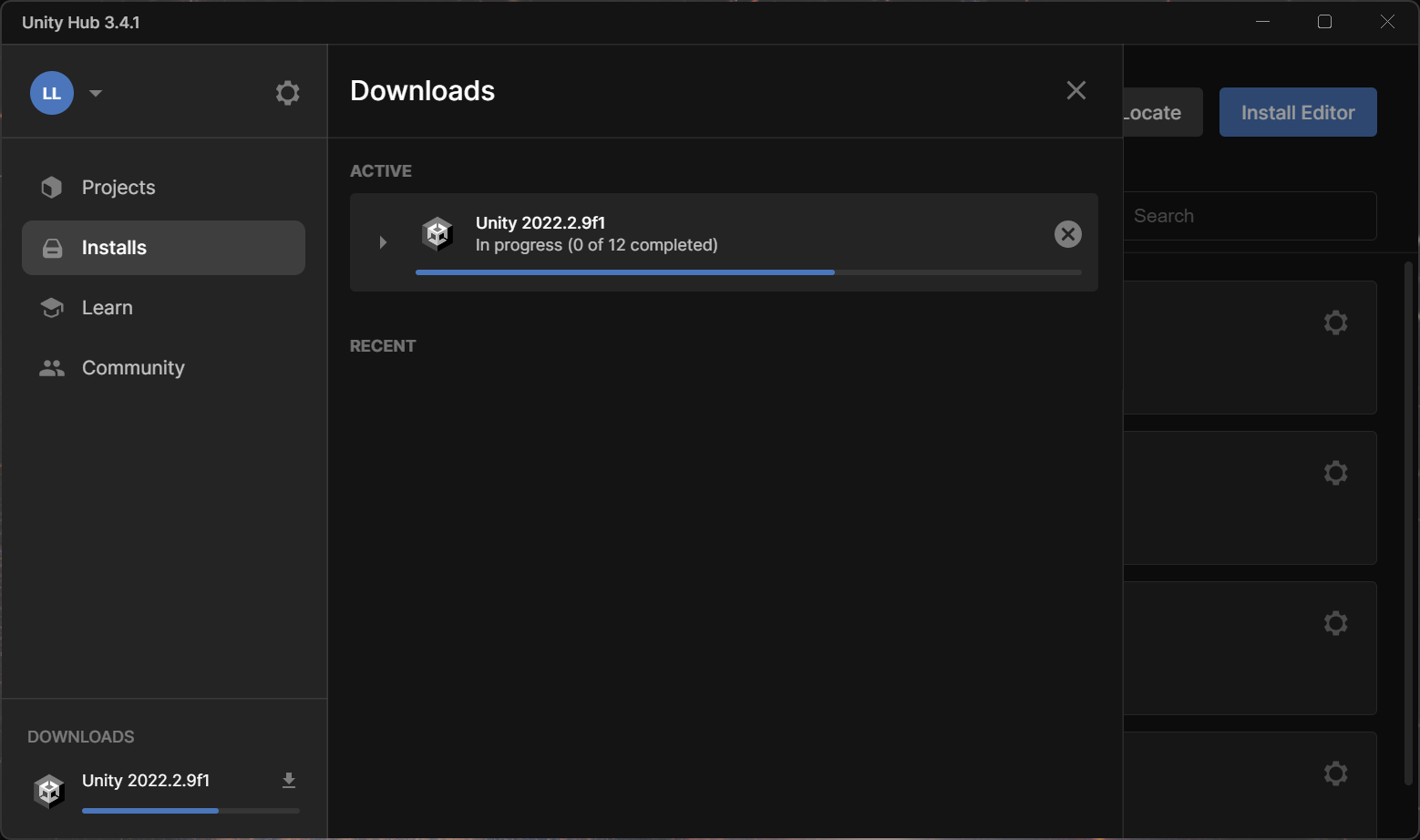
- Unity will install…
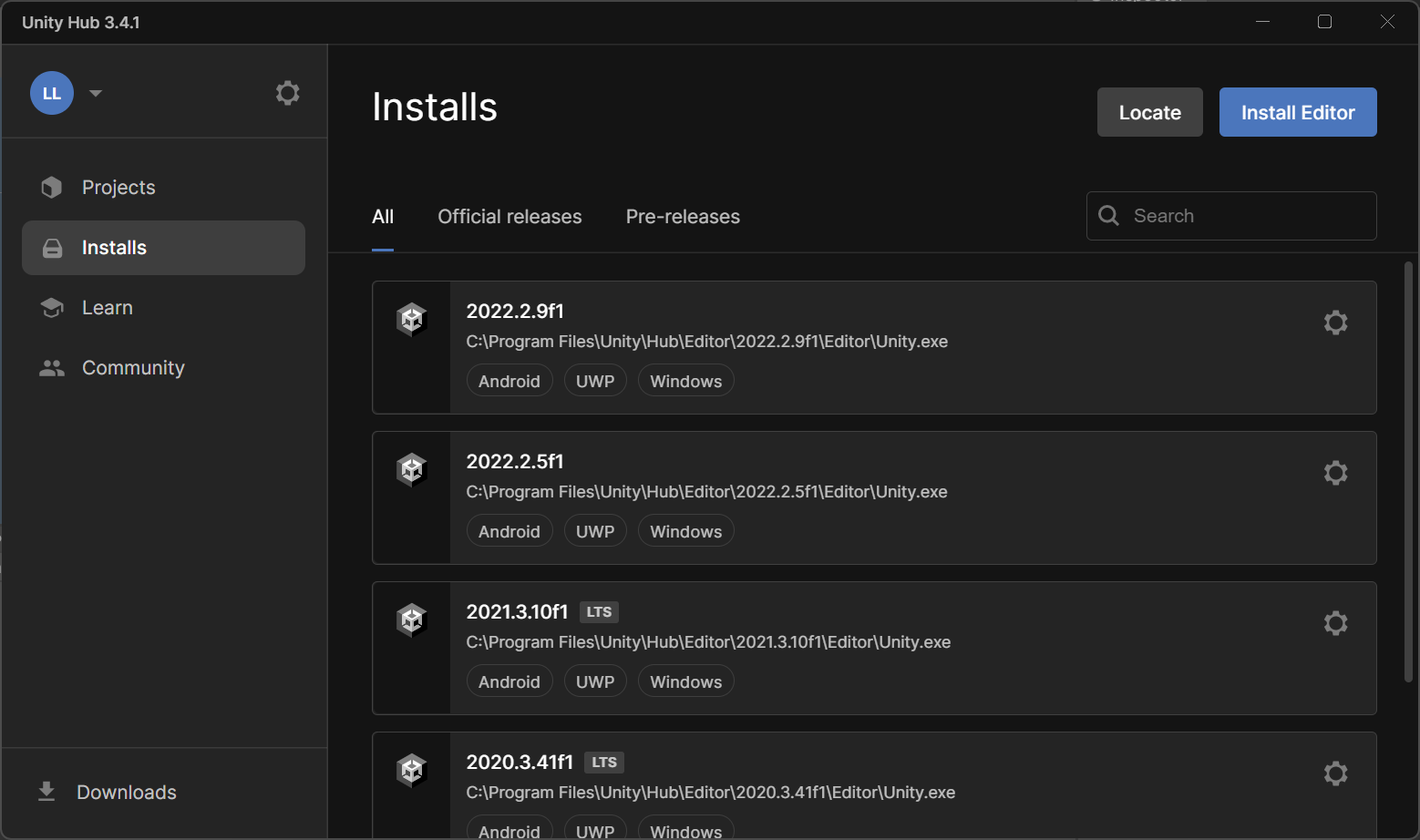
- You can have many versions of Unity installed at the same time, I often keep at least one installed version from each of the version years, i.e. 2019, 2020, 2021 and now 2022
- You’ll see several version, the ones with LTS next to them are the “Long Term Support” versions – we however are using the latest version of Unity 2022.2.9
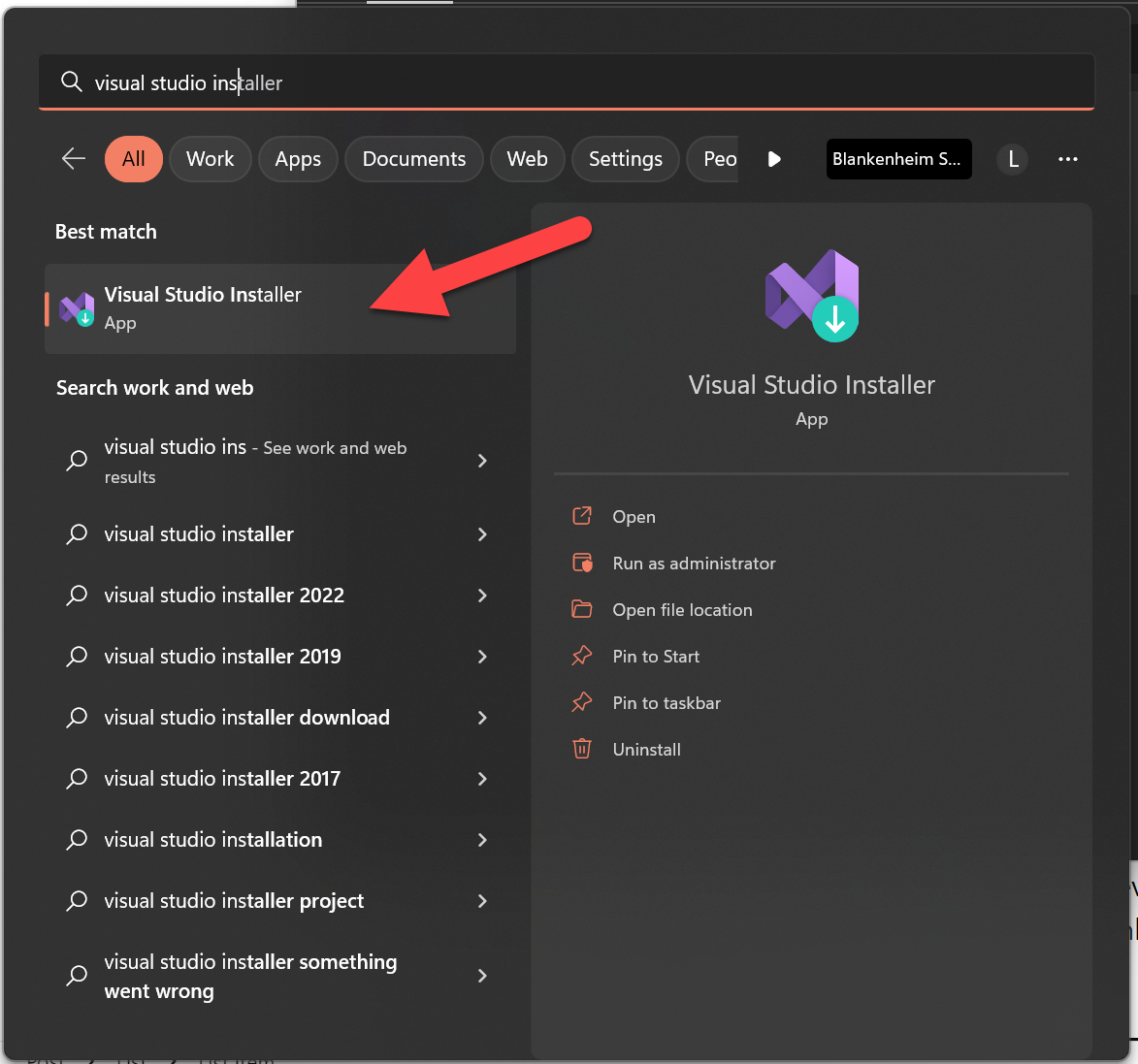
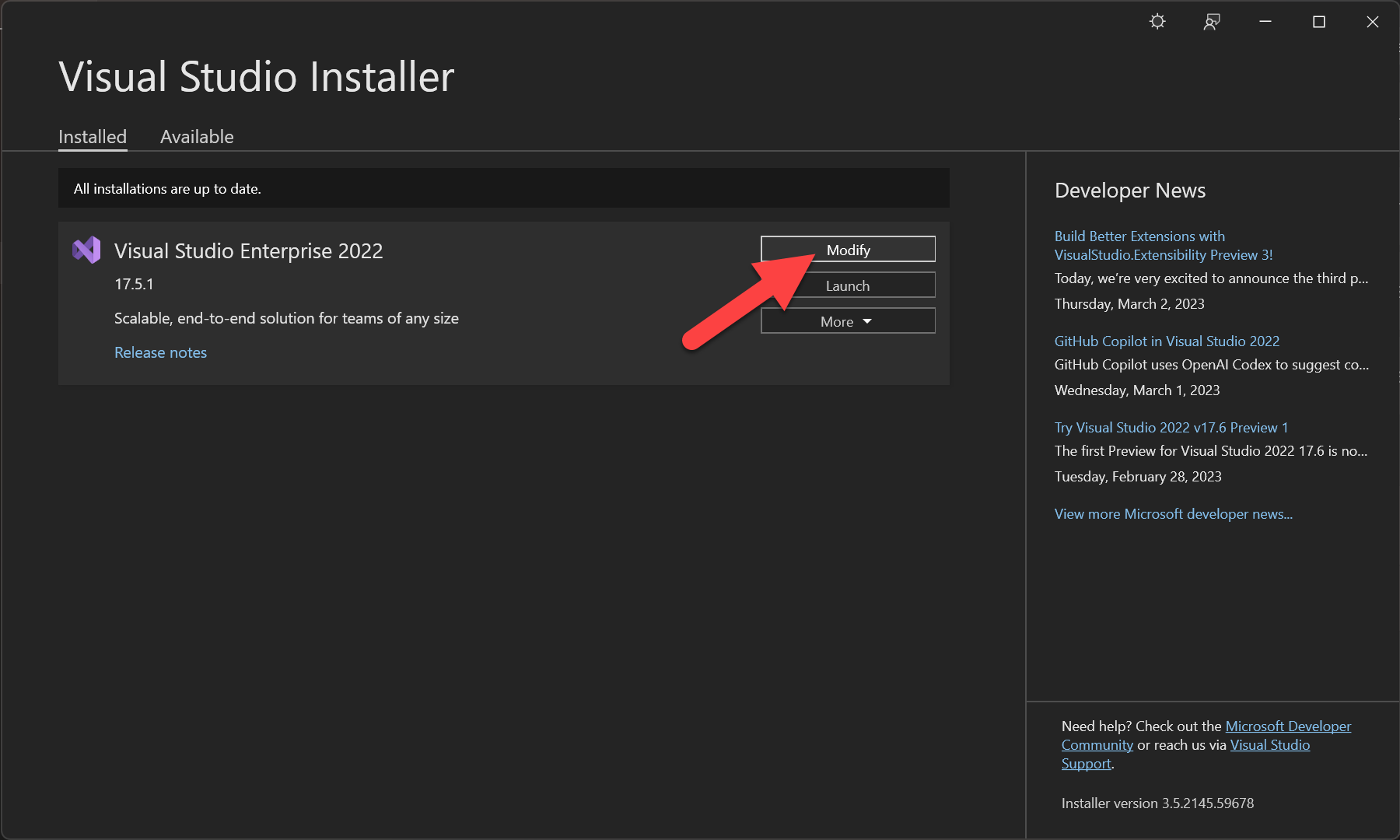
- Run Visual Studio Installer (for example, in your Windows Start menu type “visual studio installer” and click it)
- Click Modify
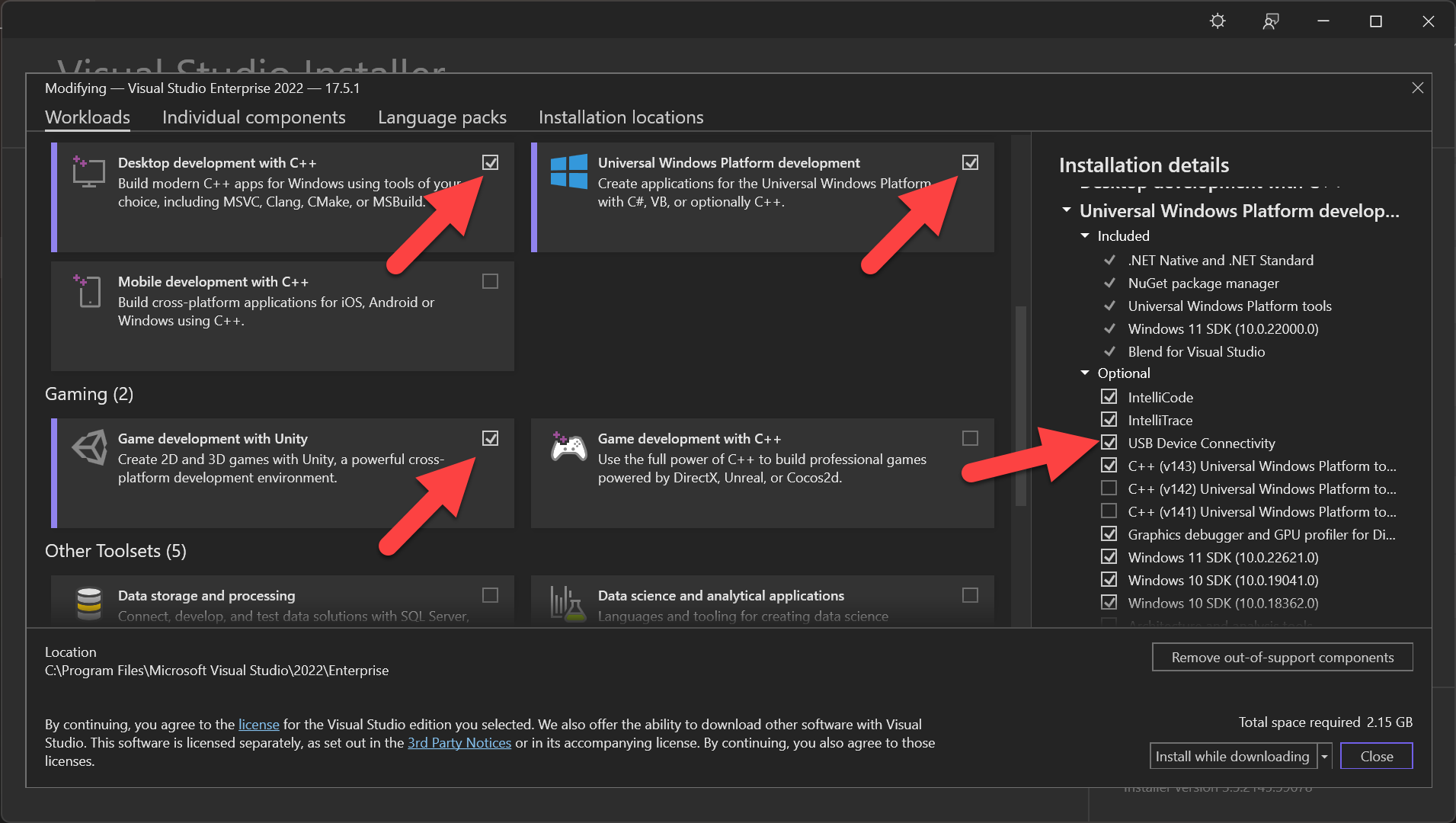
- Verify that each of these components are installed, if not then check each and click Install
- Check Desktop development with C++
- Check Universal Windows Platform development
- Check Game development with Unity
- On the right hand side, check USB Device Connectivity
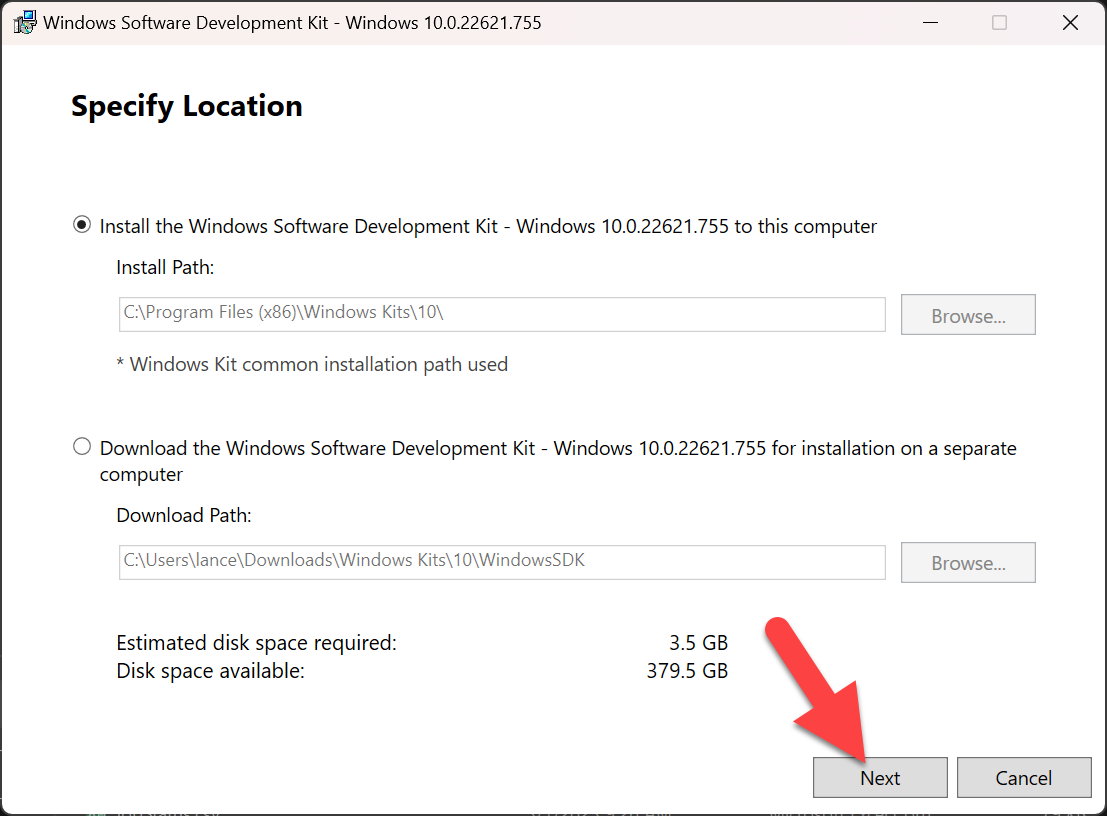
- Download and install the lasted Windows SDK
- Click Next
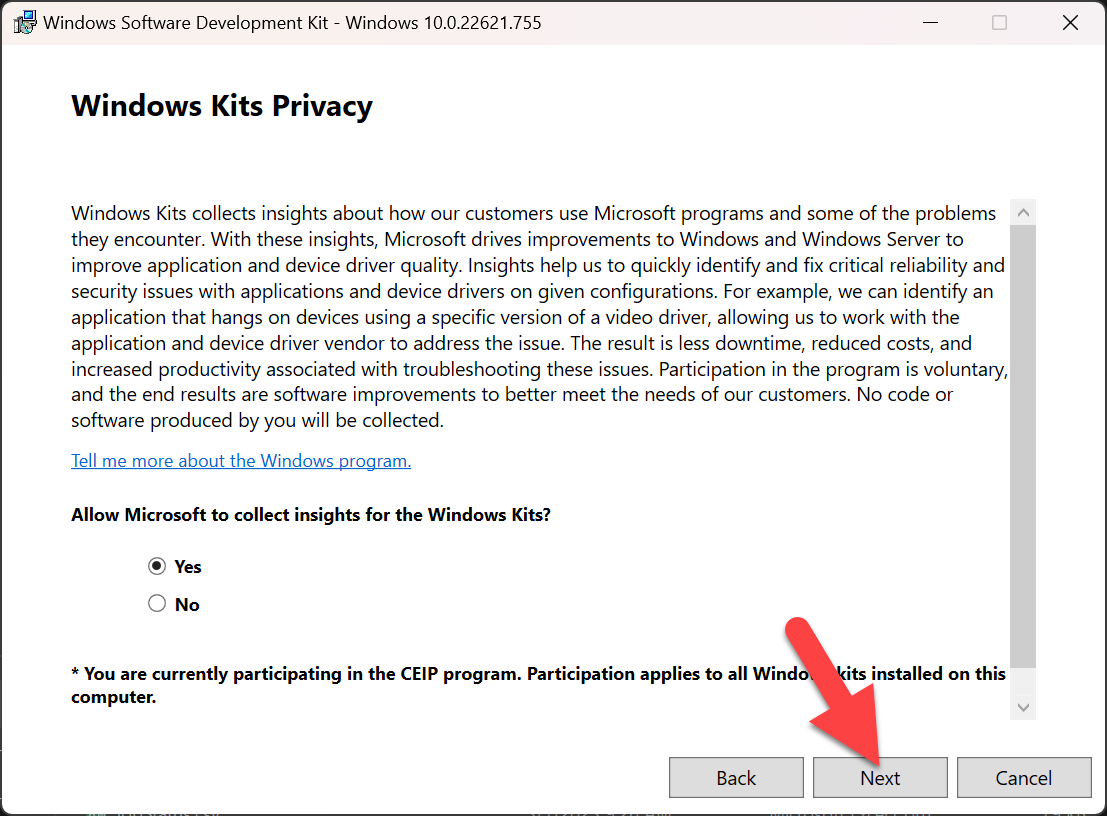
- Click Next
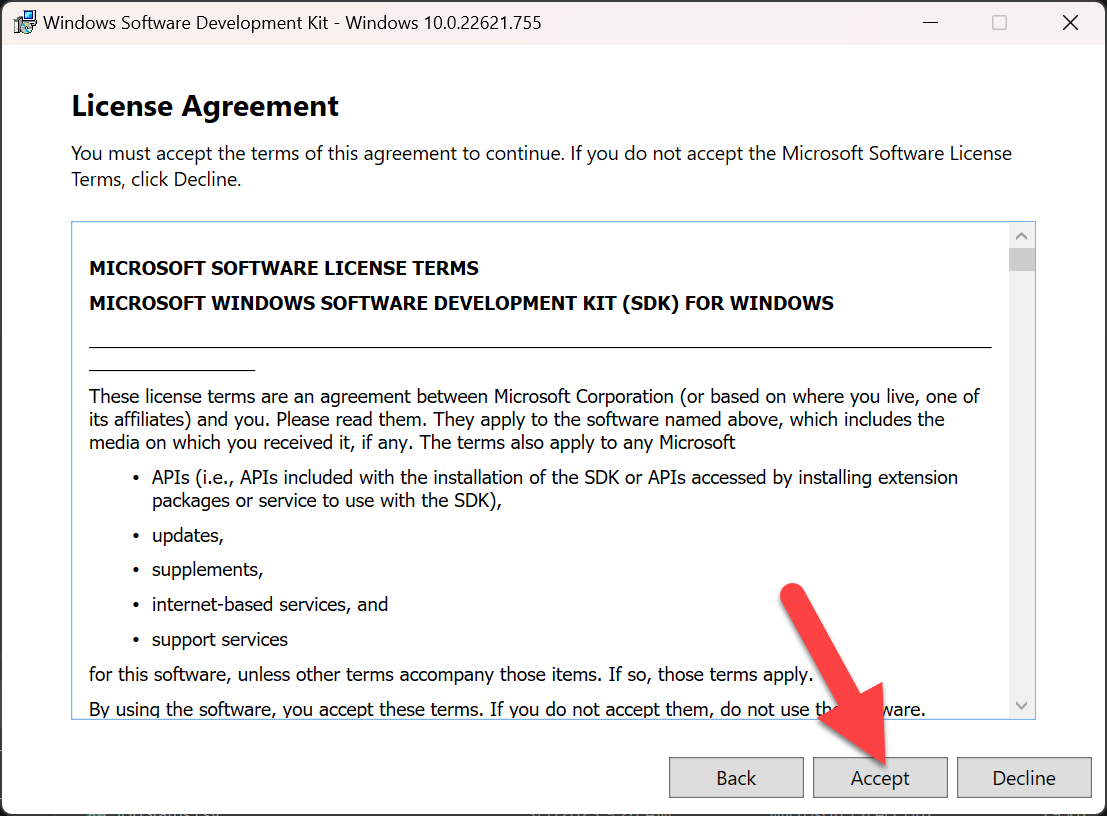
- Click Accept
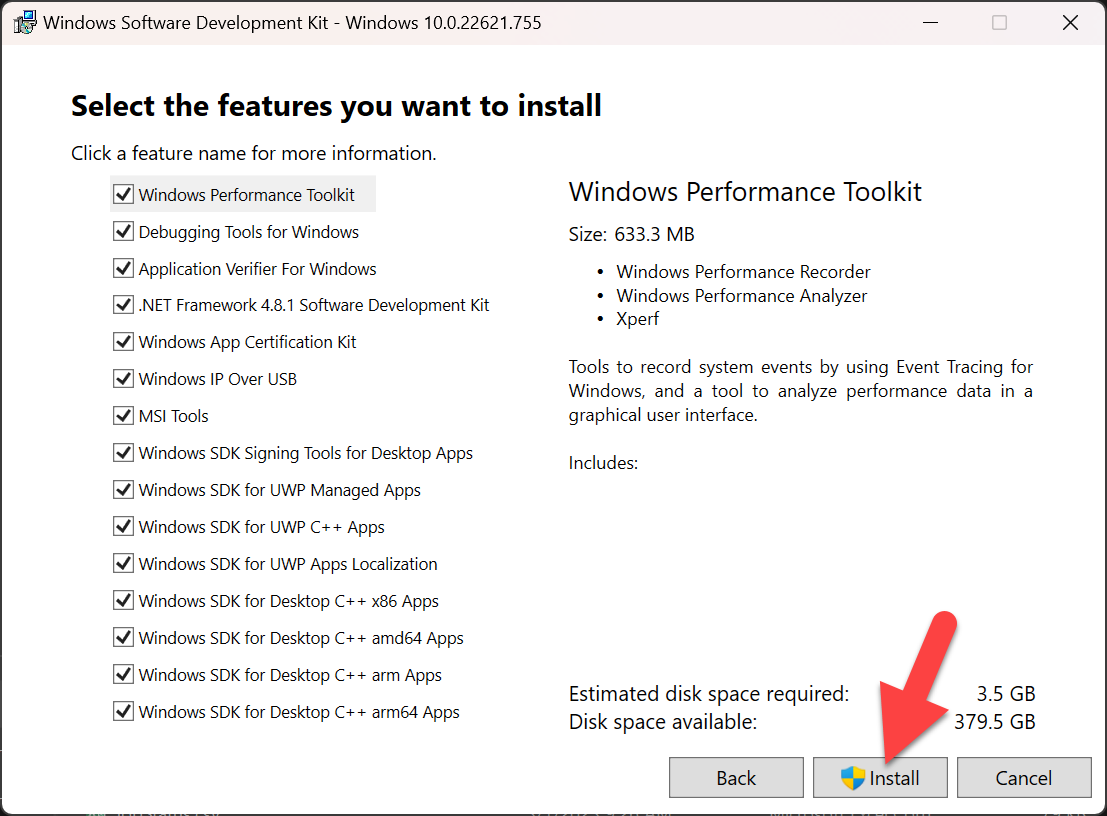
- Click Install
- Note, I installed everything here, but you could potentially uncheck some of the options
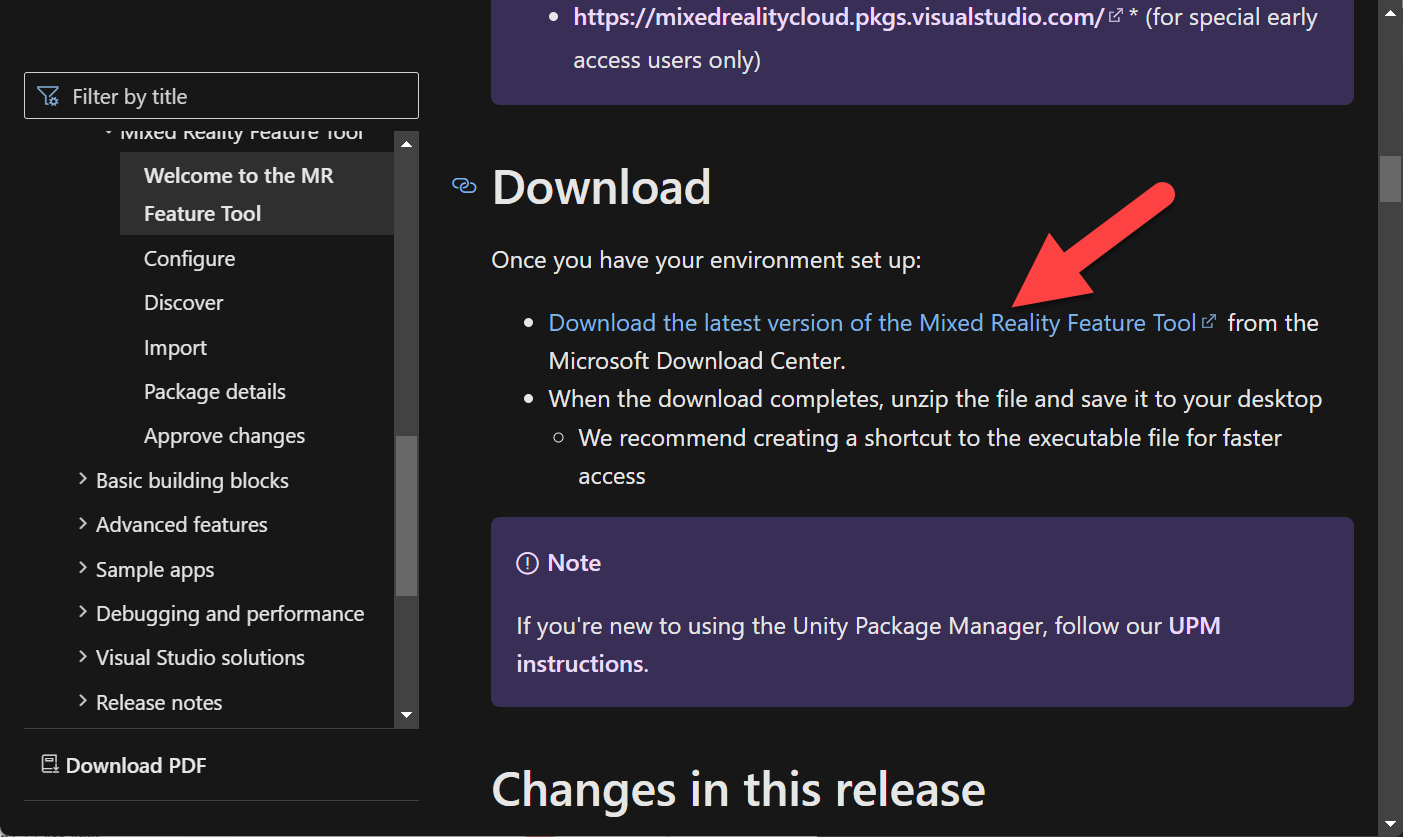
- Download Microsoft Mixed Reality Feature Tool
- Click “Download the latest version of the Mixed Reality Feature Tool”
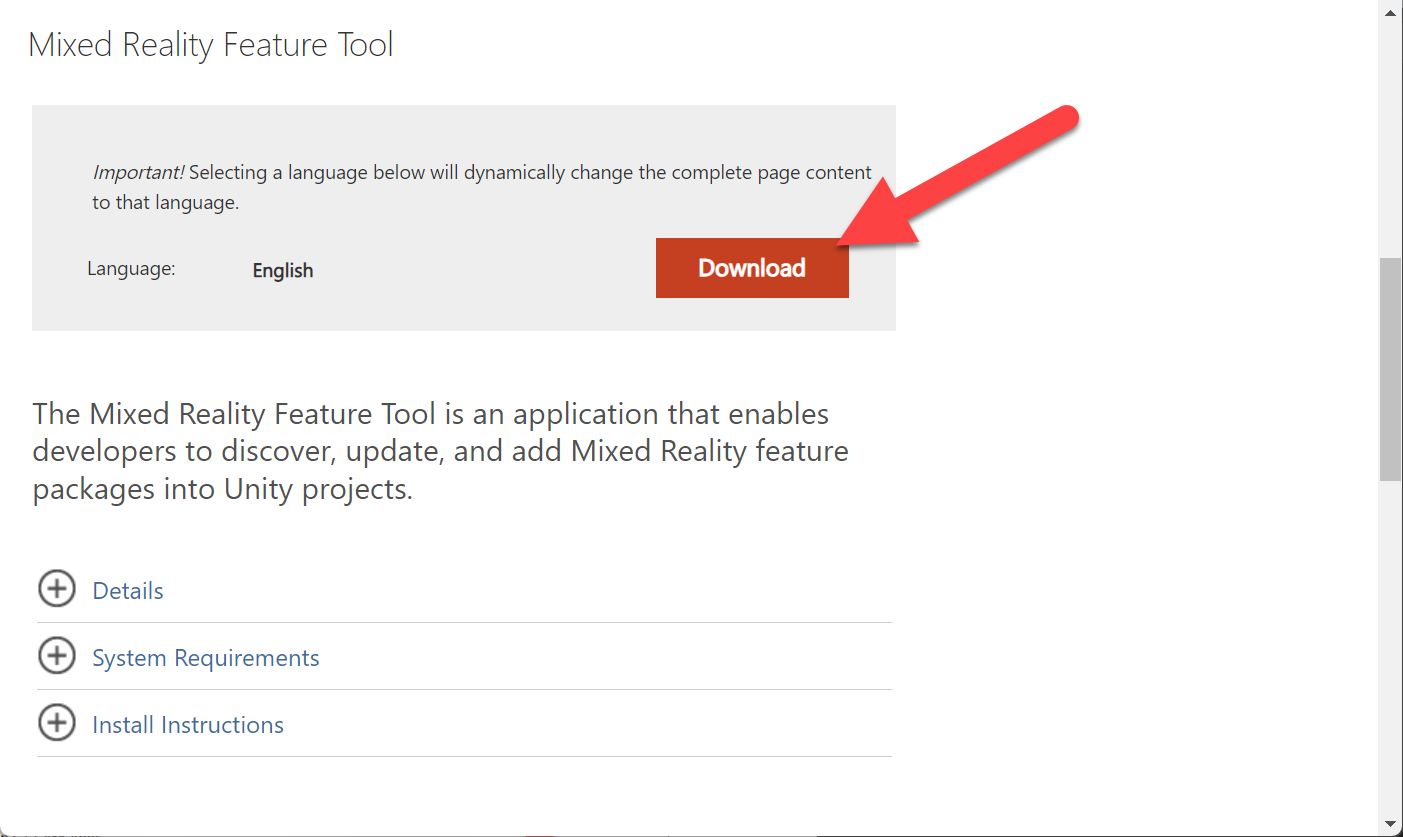
- Click Download
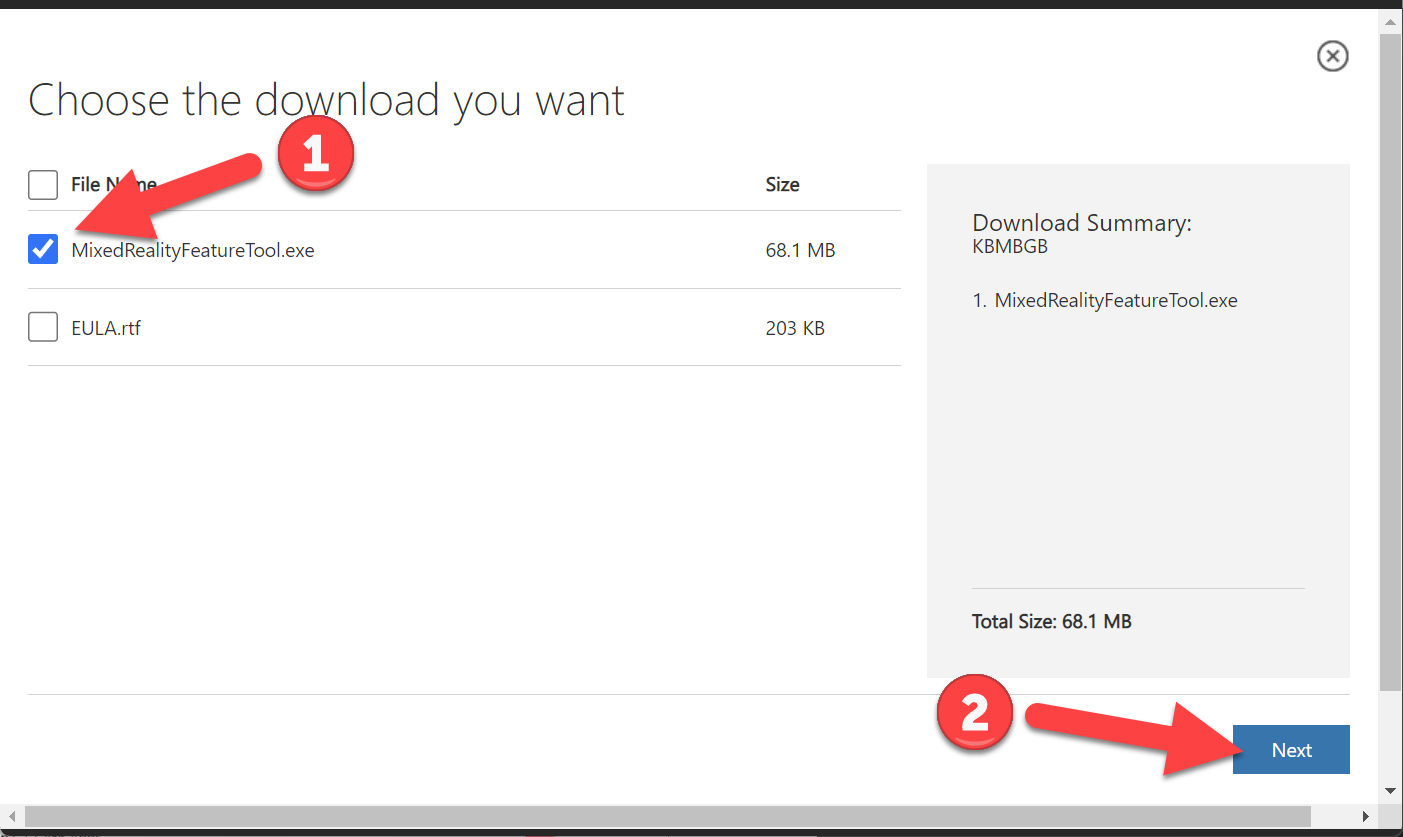
- Check MixedRealityFeatureTool.exe
- Click Next
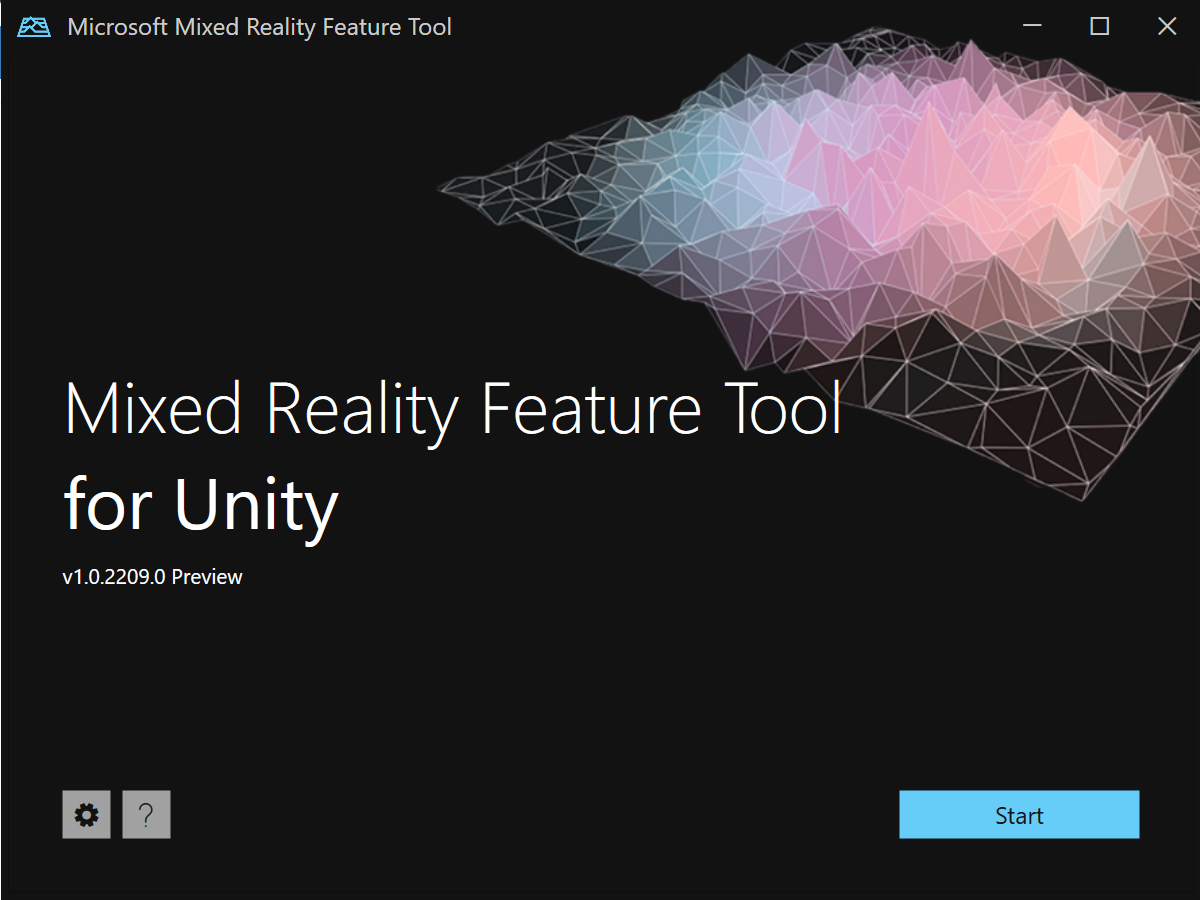
- You’ve now got the Mixed Reality Feature Tool for Unity installed!
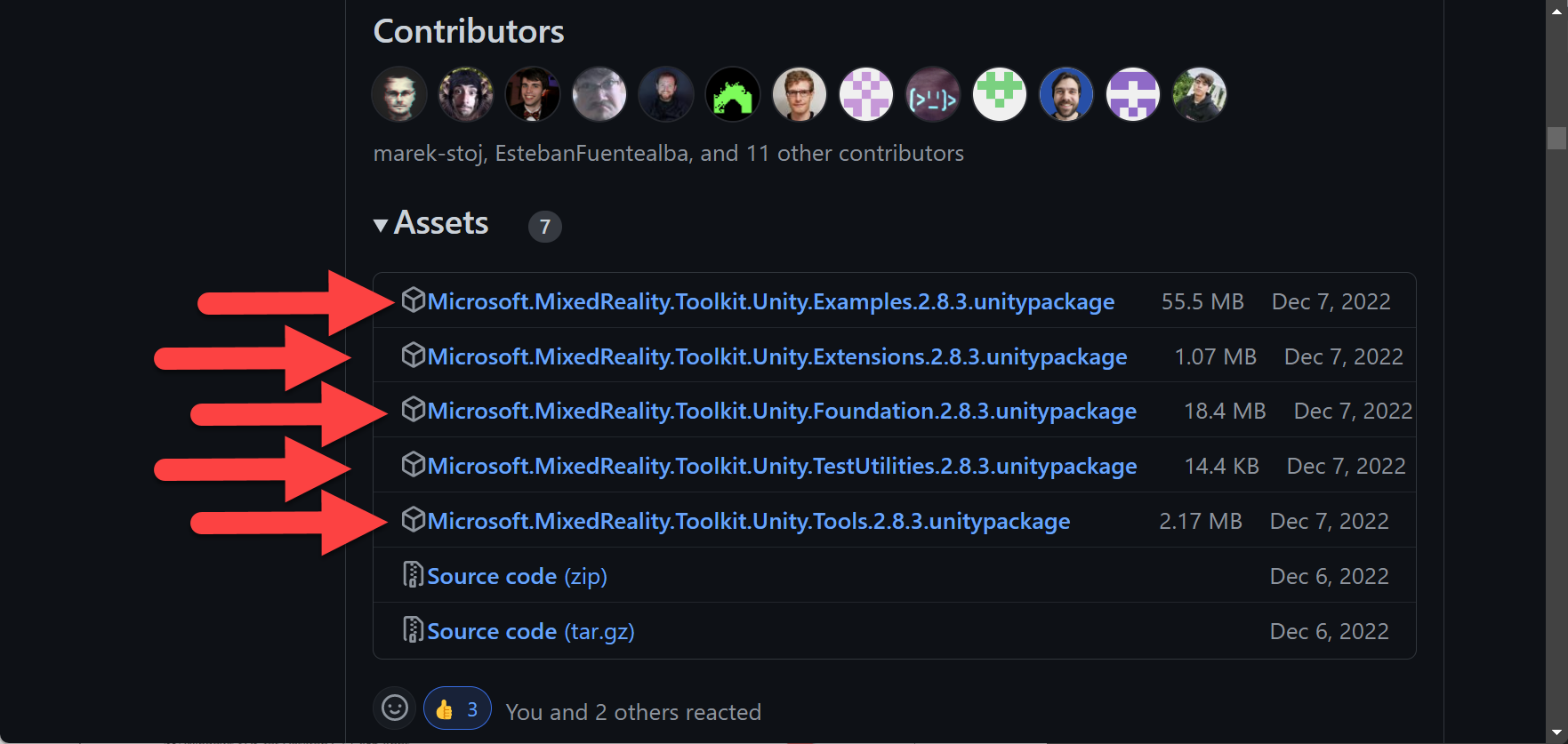
- Download the 5 MRTK (Mixed Reality Toolkit) Unity packages – which we’ll be adding to our Hololens 2 Unity projects in the future – as of now the current version is 2.8.3
- https://github.com/microsoft/MixedRealityToolkit-Unity/releases
- NOTE – MRTK 3 is out, but currently using 2.8.3 for this series as that’s what I’m most familiar with, we’ll include MRTK 3 in future series
- Woot! We now have everything downloaded and configured for our next Hololens article!
Love any feedback and see you in future XR blog posts.
Build something amazing in XR! — Lance
Want to see the other blog articles in this (and other) series?
Click here to see all of my XR Step-by-Step blogs separated by device and version!