XR Step-by-Step 2024! Meta Quest: Hands and Controllers at the Same Time!
Virtual Reality (VR), Augmented Reality (AR), Mixed Reality (MR) and now Spatial Computing all come together as XR or “Extended-Reality”. You’re in the right place at the right time to build something amazing in XR! In this blog post series…
Virtual Reality (VR), Augmented Reality (AR), Mixed Reality (MR) and now Spatial Computing all come together as XR or “Extended-Reality”.
You’re in the right place at the right time to build something amazing in XR!
In this blog post series we will focus on Meta Quest!
Check out other blog articles in this (and other) series!
Quick links to Lance’s latest XR Step-by-Step blog articles by device
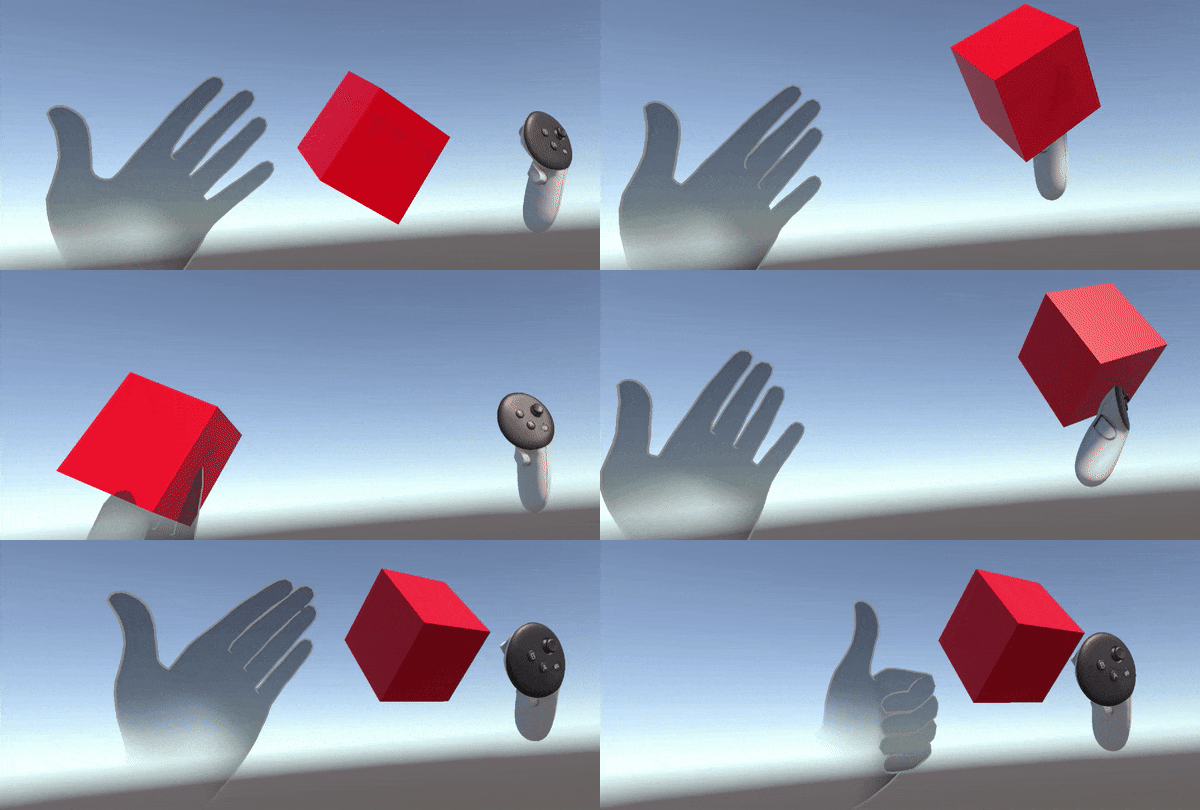
In our initial project setup we got hand tracking done auto-magically for us with the Meta Building Blocks! But a new feature called Simultaneous Hand and Controller Tracking allows for us to use both at the same time. This will be very quick tutorial, but unlocks some very intriguing possibilities for our XR experiences.
Full Step-by-Step Instructions!
<Note>
If you’re following along and creating your own XR experience just keep modifying your sample scene, but if you want to see the finished code it’s in a Github Repo for your easy reference at any time. 🙂
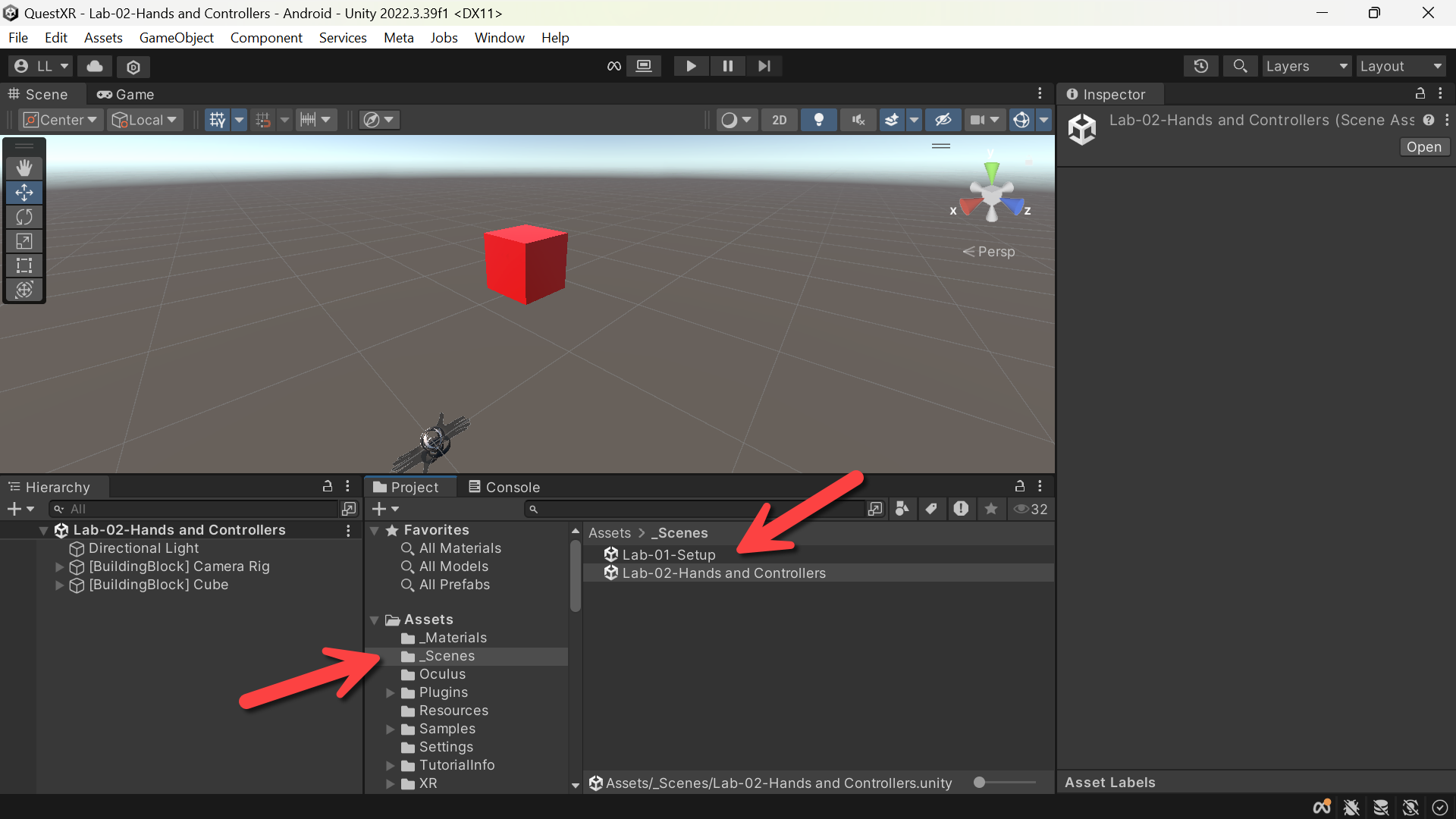
Moving forward you’ll see that I’ve duplicated and renamed the scenes based on the labs, ie. I renamed the SampleScene to “Lab-01-Setup”, copied it and created “Lab-02-Hands and Controllers” so you can easily refer back to previous code by just double-clicking on previous scenes.
</Note>

Download the finished code for this blog article @ Github Repo
Enabling Hands and Controllers Together!
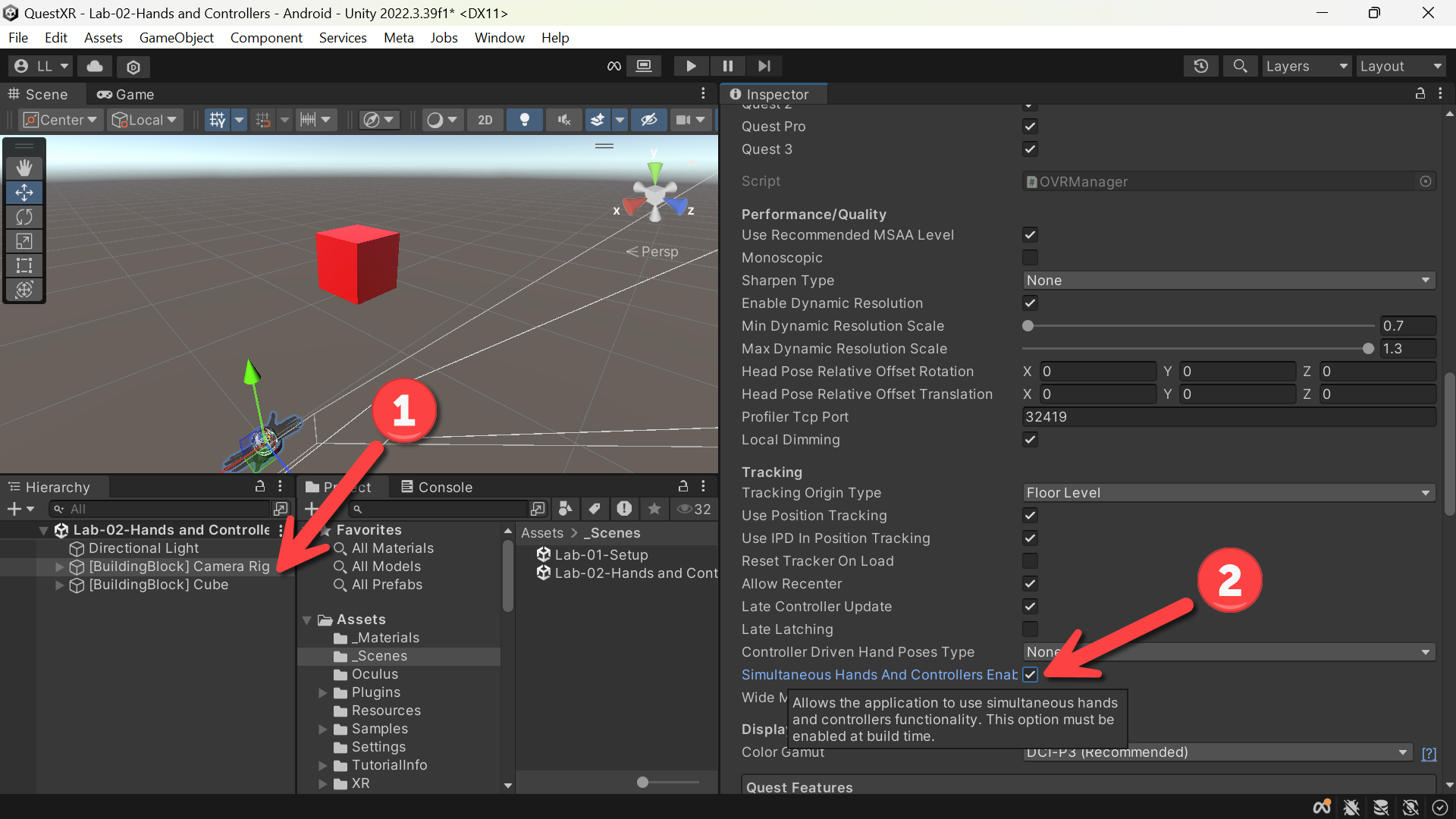
- (Hierarchy) Click Camera Rig
- (Inspector) Under Tracking -> Click Simultaneous Hands and Controllers Enabled checkbox
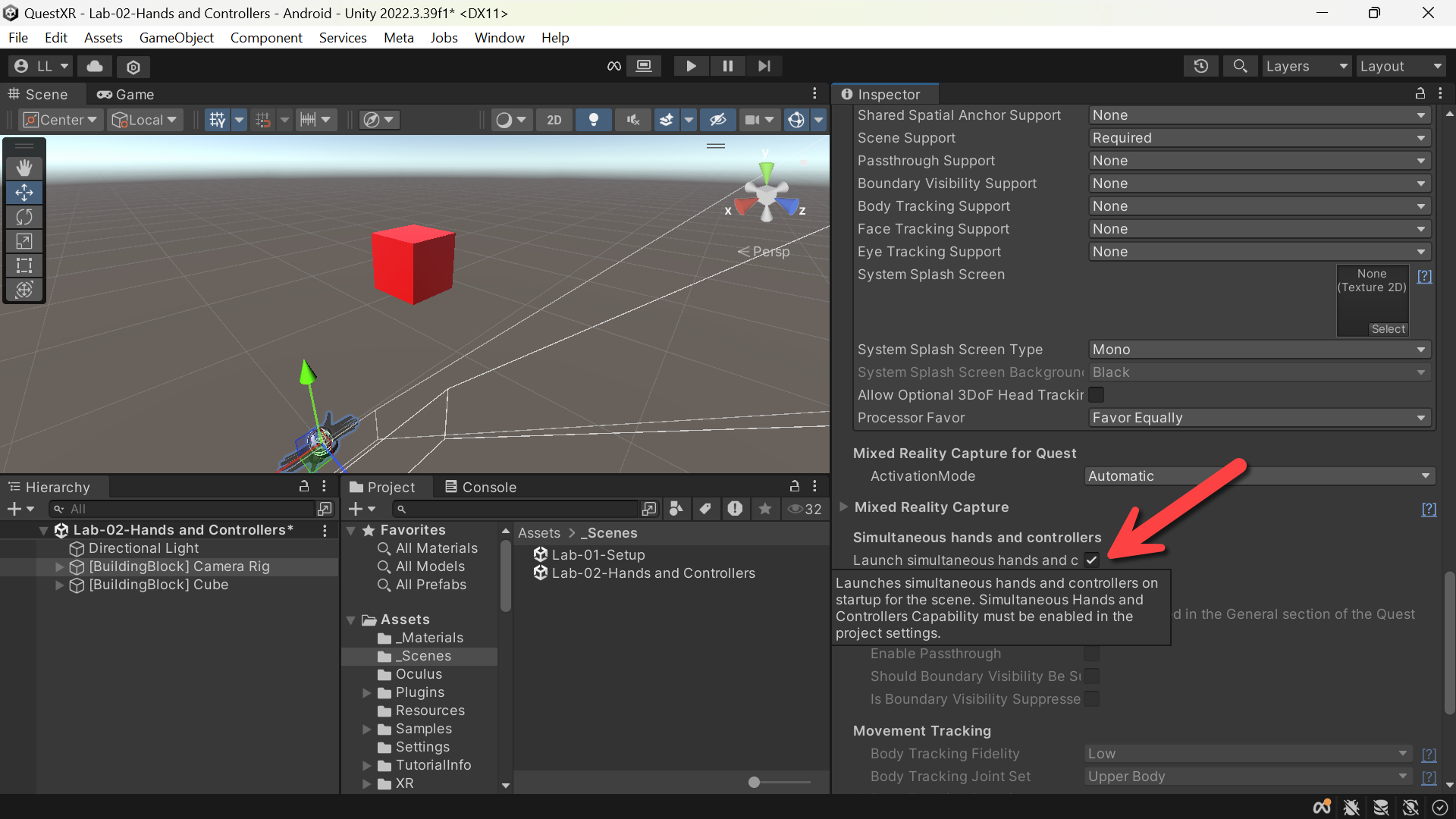
- (Inspector) Under Mixed Reality Capture -> Click Launch simultaneous hands and controllers mode on startup checkbox
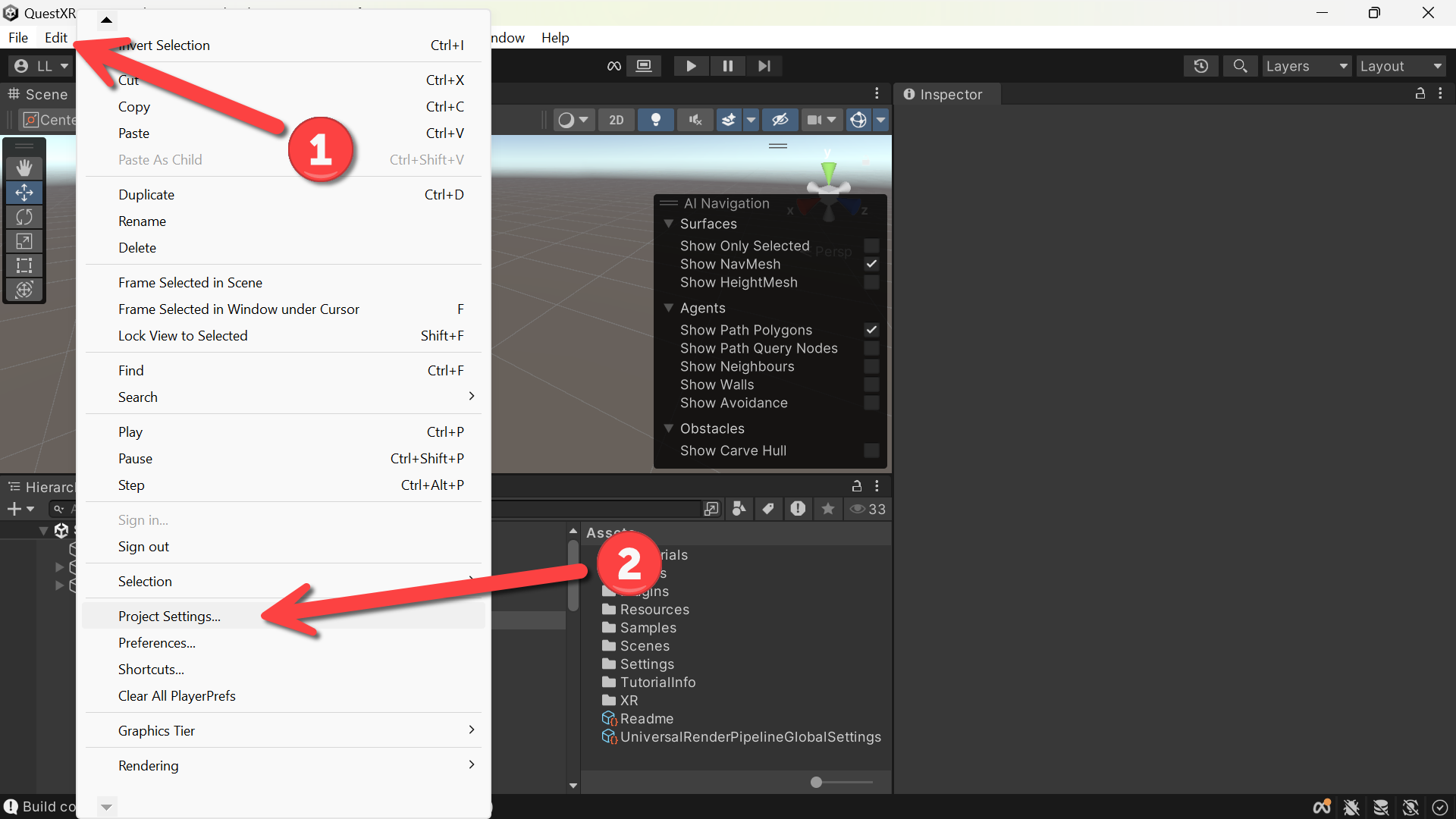
- (Toolbar) Click Edit
- Click Project Settings
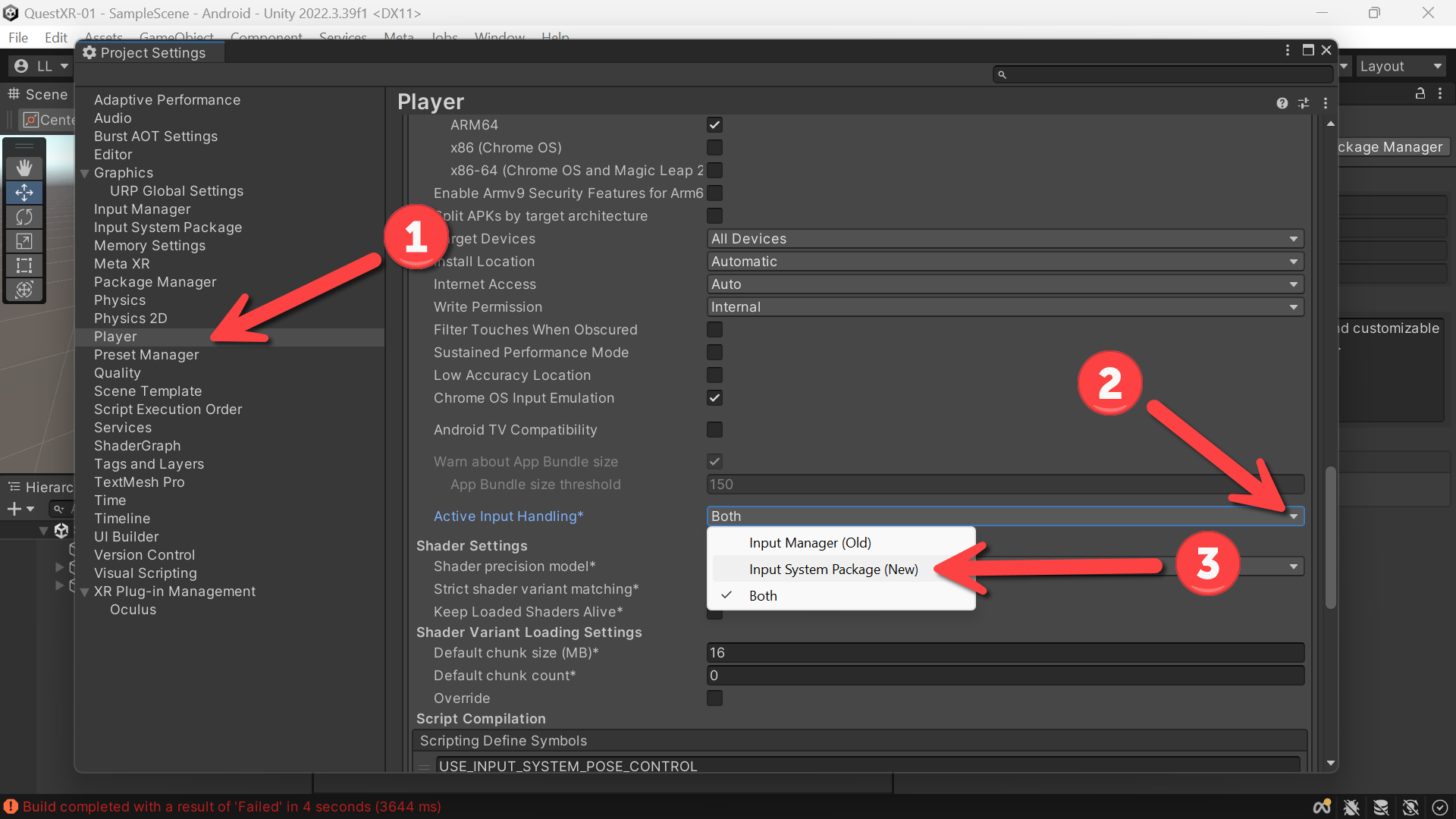
- (Project Settings) Click Player
- (Player) Expand Other Settings -> Scroll down and find Active Input Handling
- (Active Input Handling) Change from Both to Input System Package (New)
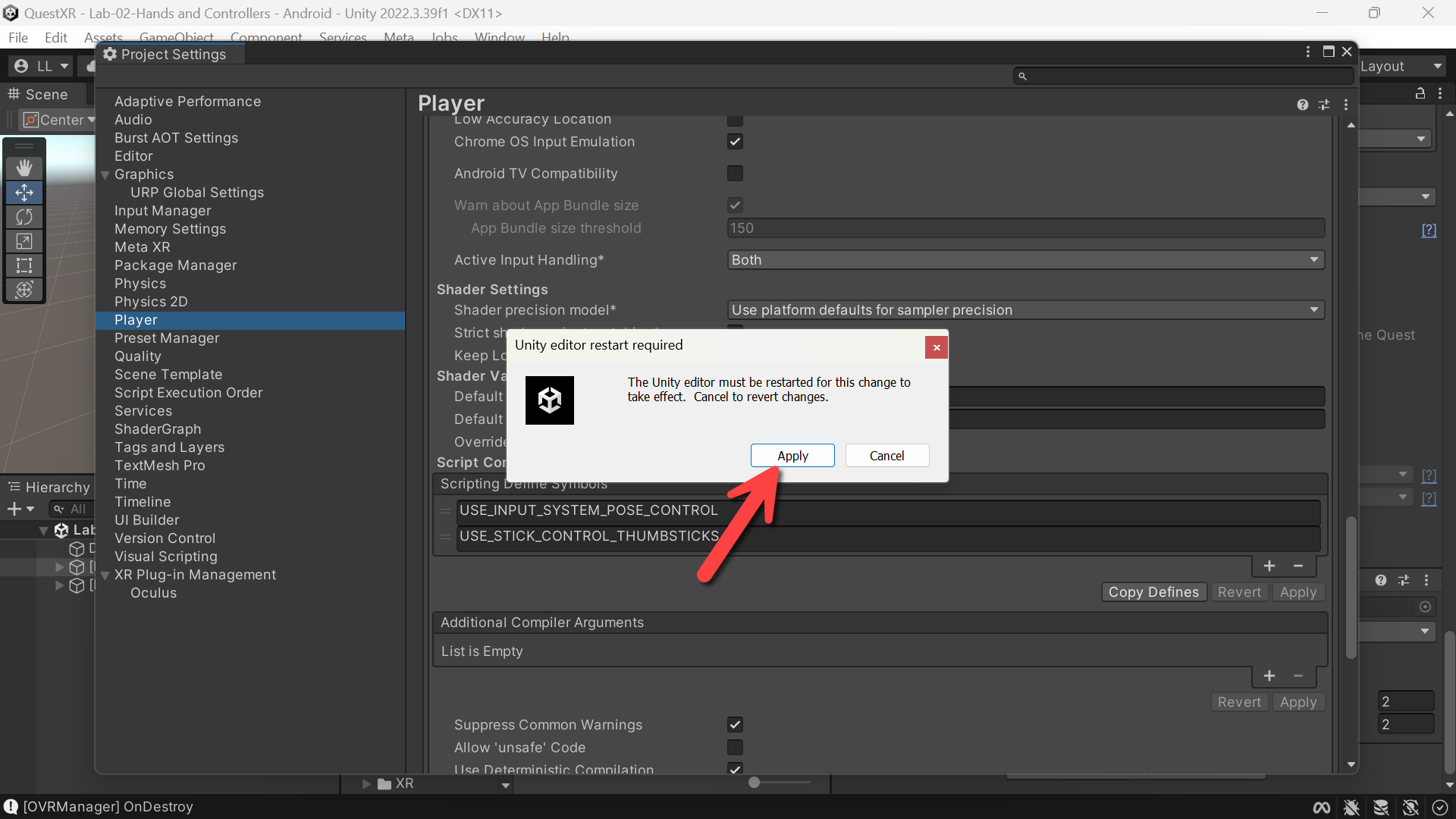
- Click Apply and Unity will to reload
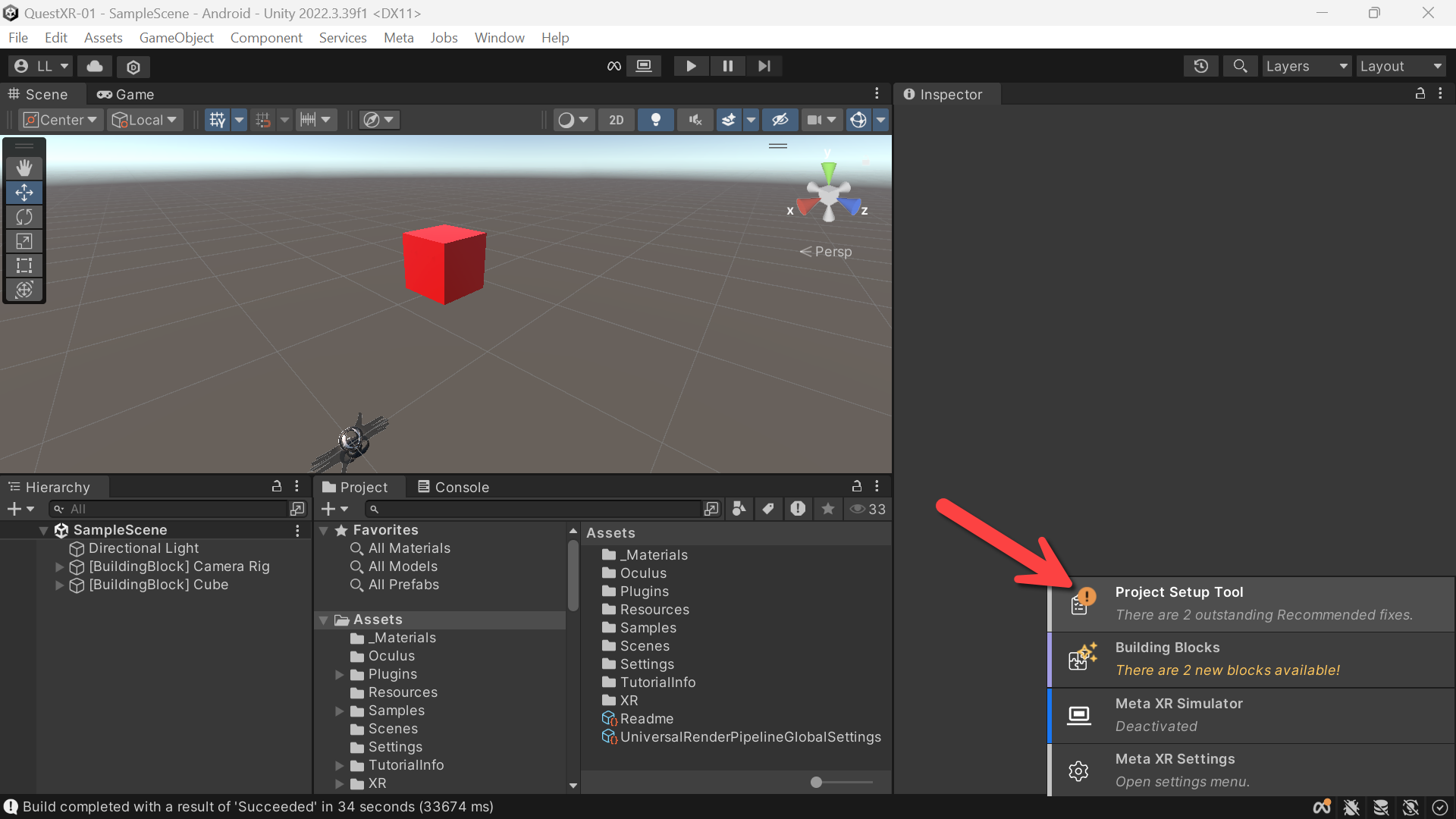
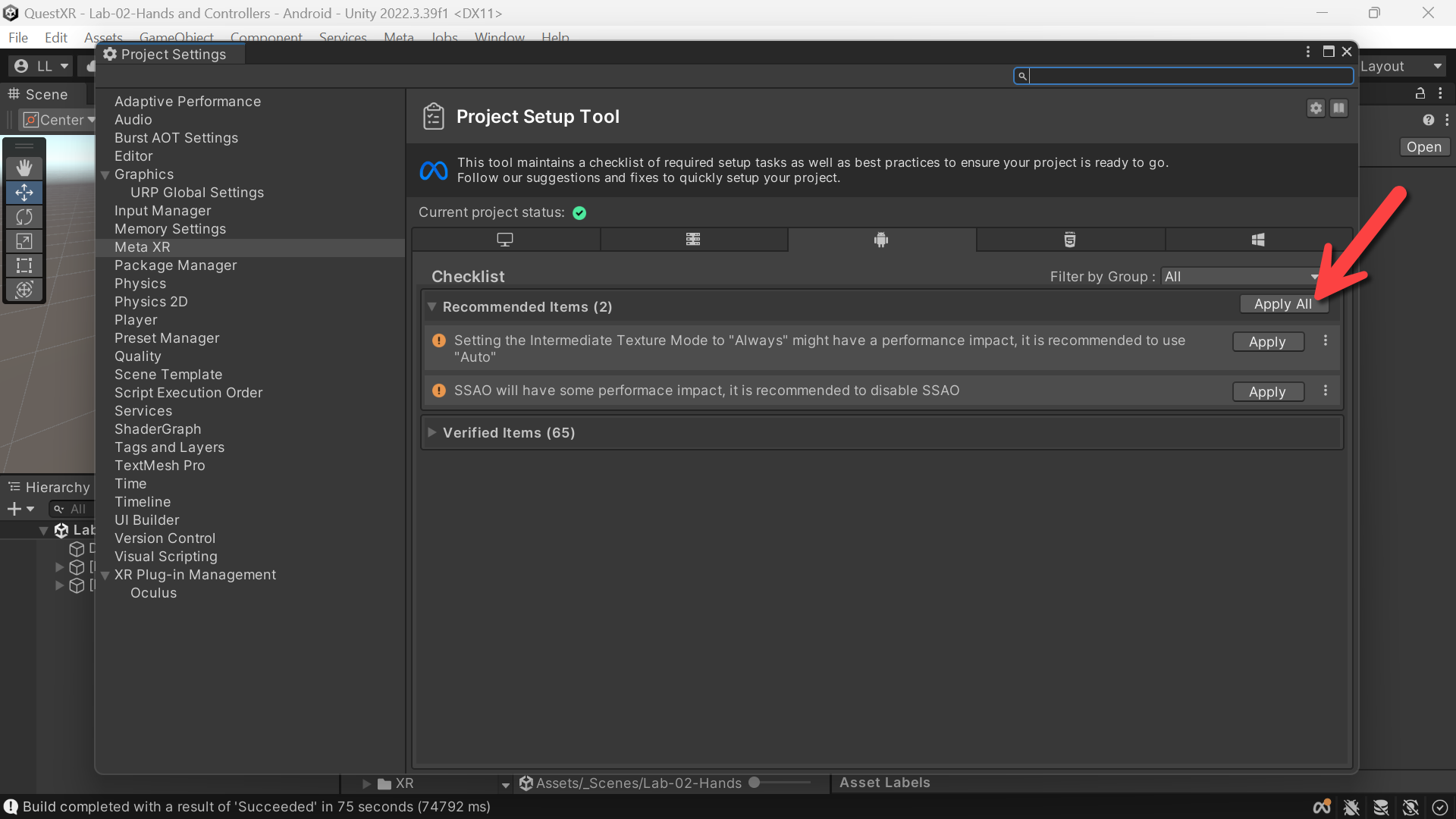
- Remember to check your Project Setup Tool -> Click Apply All if needed
- Build and Run your project… and…
Done! Hands and Controllers Living together happily ever after… :p
Check out other blog articles in this (and other) series!
Quick links to Lance’s latest XR Step-by-Step blog articles by device